
Published: July 25, 2026
Backing up your phone is advice everyone gives, but the real question is how the backup actually gets made, because not everyone is technical. Plenty of people know how to use a phone but have no idea how to set up or manage a backup.
A phone is a device we use every day and carry with us almost everywhere. That’s why backing up your data is so important. Losing your phone, damaging it, or having your files become corrupted can happen at any time. Creating a backup is one of the safest ways to protect your data in these situations.
Android phones don’t rely on just one backup system. Google handles most of the backup process in the background, but some data, such as WhatsApp chats and brand-specific information on Samsung and Xiaomi phones, requires separate backup steps. Knowing which system backs up each type of data helps ensure your backup is actually complete.
What an Android Backup Includes
A Google backup on Android typically includes contacts, call history, device settings such as Wi-Fi passwords and wallpaper, app data for supported apps, and photos and videos synced with Google Photos. Some Android phones also back up SMS messages, but this depends on the phone manufacturer and the default messaging app, so it isn’t available on every device.
Android backups use your available Google Account storage. If your storage is almost full, new backups may not finish until you free up space or upgrade your storage plan — and low storage can also slow your phone down over time, so it’s worth keeping some room to spare.
What Android Backup Doesn’t Include
Files stored in local-only folders, data from apps that block backups for security reasons (banking apps are a common example), and content saved only on an SD card aren’t backed up automatically unless you move it manually. WhatsApp is also separate from the standard Google backup system and requires its own backup, which is explained later in this article.
Google’s Android Help documentation on backup and restore explains this behavior directly, including how end-to-end encryption applies to certain data types tied to your screen lock.
Backup Using Your Google Account
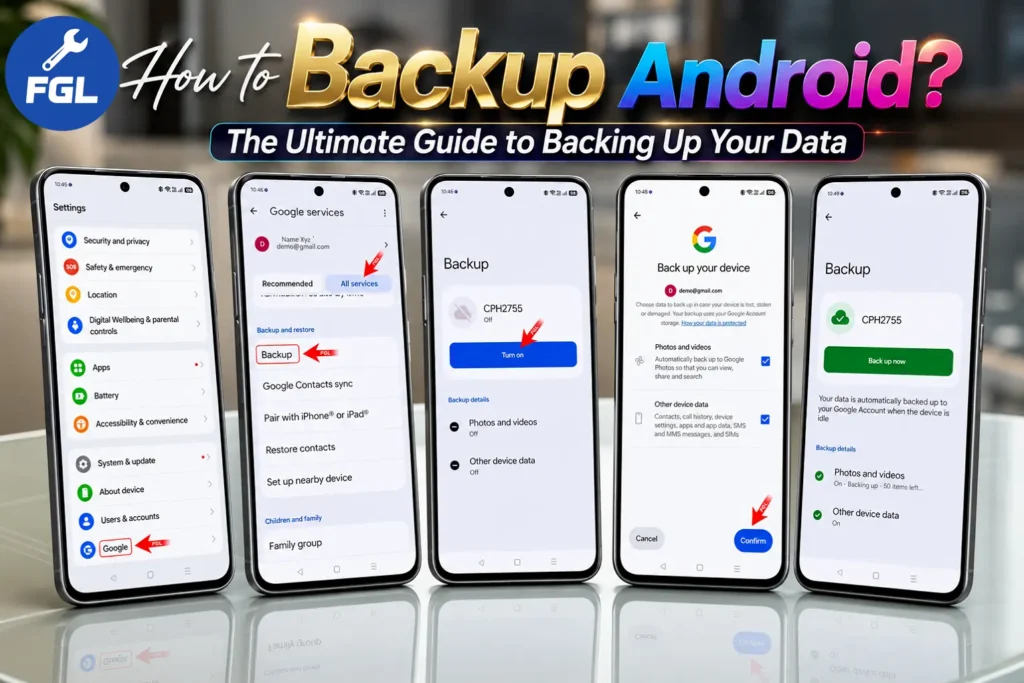
I created this backup on an OPPO A5x (CPH2725) running software version CPH2725_16.0.5.701 (EX01) with Android 16. The screenshots in this article were taken from the same device during the backup process. If you’re creating a backup on a different Android phone or software version, you may notice a few changes in the menu names or layout, but the overall process is the same.
How to Create an Android Backup
- Open Settings.
- Select Google.
- Select All services.
- Open Backup.
- Turn on Backup.
- Select Photos & videos and Other device data.
- Confirm
Once Backup by Google One is turned on, Android starts backing up eligible device data to your Google Account. The first backup may take longer than later ones because more data needs to be uploaded. Google recommends keeping your phone connected to Wi-Fi and, when possible, charging while the backup completes. The exact time depends on the amount of data being backed up and your internet connection, as explained in Google’s official Backup by Google One help page.
Backing Up Photos and Videos Separately
Photos and videos are backed up through Google Photos, which works separately from your device backup. Even if Backup by Google One is enabled, it’s still worth checking that Google Photos backup is turned on if you want your media to sync with your Google Account.
Open the Google Photos app, tap your profile picture, then go to Photos settings > Backup. Turn on Backup if it’s disabled, then choose your preferred backup quality.
Storage Saver reduces file size to save Google Account storage, while Original quality uploads photos and videos without reducing their quality. The best option depends on how much storage you have available and whether you want to keep the original files.
Backing Up WhatsApp Chats
WhatsApp chats aren’t included in Android’s standard Google backup. To keep your conversations, media, and other supported data, you’ll need to create a separate backup from within WhatsApp.
Open WhatsApp, tap the three-dot menu, then go to Settings > Chats > Chat backup. Tap Back Up to start a manual backup.
WhatsApp backups on Android use your available Google Account storage. If your chat history contains a lot of videos, turning off Include videos in the Chat backup settings can reduce the backup size while keeping your messages and other supported chat data.
Manual Backup Using a Computer
A computer gives you another way to save important files without using Google Account storage or an internet connection. This is useful if you want to keep an extra copy of your photos, videos, documents, and other personal files.
Windows, connect your Android phone with a USB cable, then select File Transfer (or MTP) from the USB notification if prompted. Open File Explorer, select your phone, and copy the folders you want to keep, such as DCIM, Pictures, Movies, Download, Documents, and other personal folders.
macOS, Android phones don’t appear in Finder by default. Google’s Android File Transfer app has been discontinued, so you’ll need an MTP-compatible file transfer app, such as OpenMTP, to copy files between your phone and Mac.
This method copies files stored in your phone’s internal storage, but it doesn’t back up app data, device settings, or other system information. For a complete backup, use it alongside your Google backup instead of replacing it.
Backing Up Contacts
Contacts saved only on your phone can be lost if the device is reset or replaced. Saving them to your Google Account keeps them available when you sign in on another Android device.
Open the Contacts app and check where your contacts are saved. If they’re stored on your phone, use the app’s Import or Move option (if available) to save them to your Google Account. The available options may vary depending on your phone and the Contacts app you’re using.
After your contacts are saved to your Google Account, new contacts are usually synced automatically when you save them to the same account.
Using an SD Card as a Backup Layer
If your Android phone supports an SD card, you can copy important files to it using the Files app or your phone’s built-in file manager. This is useful for keeping an extra copy of photos, videos, documents, and other personal files.
An SD card doesn’t back up app data or device settings, so it’s best used as an additional backup instead of your only one.
Checking Whether Backup Is Enabled
Open Settings > Google > Backup (or Settings > Google > All services > Backup on some phones) to check your backup status. The page shows whether Backup is turned on and when your last backup was completed.
If your last backup is several days old, connect your phone to Wi-Fi, make sure your Google Account has enough available storage, then run a manual backup. This helps confirm your latest data has been saved before resetting your phone or switching to a new device. It’s also worth checking your backup if you’ve been dealing with apps crashing after a recent update, since a factory reset is sometimes the last resort for fixing those issues.
Conclusion
Backing up your Android phone regularly helps protect your important data and makes it easier to restore your information when you switch devices or perform a factory reset. Most banking and financial apps don’t back up passwords, account details, or login information, so you’ll usually need to sign in again after restoring your backup. If signing back into your Google account causes unusual battery drain or your phone gets stuck syncing, it could be a sync loop issue rather than a backup problem. This is completely normal and is part of the app’s security measures.

- Google Pixel Battery Drain and Overheating: Causes and Fixes - October 25, 2026
- Google Pixel Video Bug: Subject Missing in Saved Recordings - October 25, 2026
- iPhone 18 Pro Earpiece and Speaker Crackling or Popping: Is It Fixable? - October 25, 2026