
Published: June 16, 2026
If you are at a party or out with your family and friends, trying to capture beautiful moments on your phone, but as soon as you open the camera, the screen freezes. When you try to type a message, it takes a few seconds for the keyboard to respond. Then a warning appears saying your phone storage is running low.
This is a very common Android problem and usually happens due to low storage, heavy background apps, and cache buildup. The good news is that you can fix it easily without losing your personal data.
Why Does Your Android Phone Lag?
Your phone relies mainly on two resources: RAM and internal storage. When storage becomes very low, usually above 85–90%, Android may start to slow down because it has limited space for temporary files.
Social media apps like TikTok, Instagram, Facebook, and WhatsApp constantly run background sync processes. These processes use RAM and CPU even when you are not actively using the apps. Storage and background apps often cause lag — our Android performance guide has practical solutions.
Over time, this leads to:
- Slow app opening
- Keyboard delay
- Screen freezing
- Overheating issues
For deeper system-related battery and performance issues, you can also check Google Play Services battery drain fix.
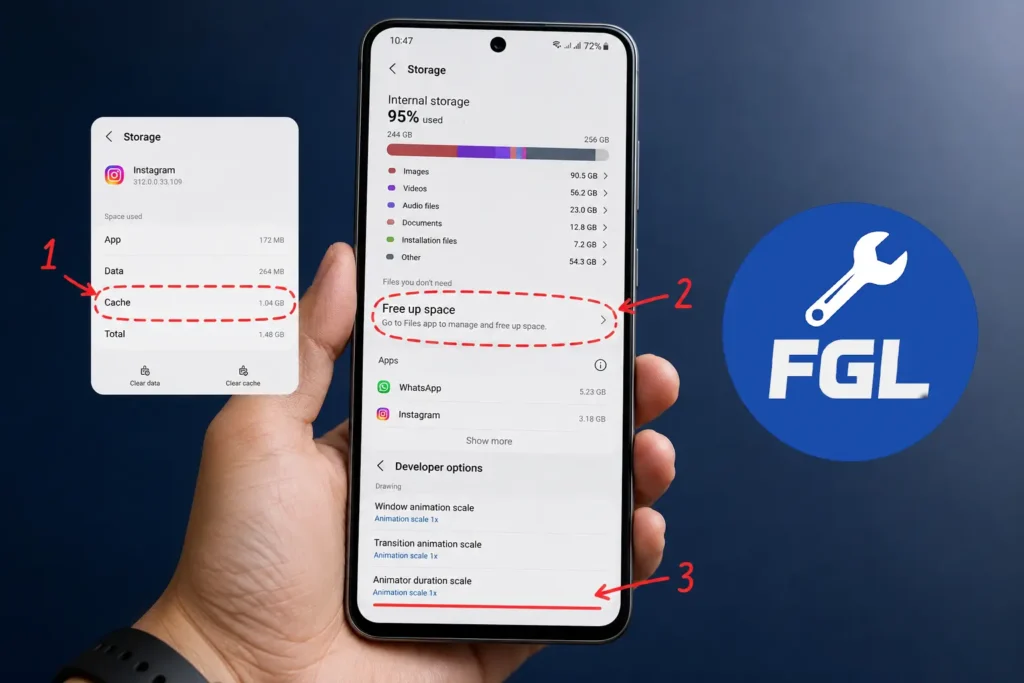
Clear App Cache
Open Settings → Apps (or Apps & notifications).
Select heavy apps like TikTok, YouTube, Chrome, or Instagram.
Go to Storage & cache → Clear cache.
Cache is temporary data stored by apps to load faster. However, when it becomes too large, it slows down your phone instead of helping it.
Real understanding:
Cache does not delete your personal data. It only removes temporary files that apps recreate automatically when needed.
Use Android’s Built-in Storage Cleaner
Go to Settings → Storage (Device Care on Samsung, Security on Xiaomi).
Tap Clean Now or Free Up Space.
This tool automatically removes:
- Junk files
- Old downloads
- Duplicate media
- Temporary system cache
Different brands use different tools:
- Pixel → Files by Google
- Samsung → Device Care
- Xiaomi → Cleaner
Using this feature regularly helps maintain smooth performance.
Stop Hidden Background Sync Loops
Many apps continue running in the background even when closed. These hidden processes use RAM and slow down your phone.
To fix this:
- Turn off auto-sync for unused apps
- Restrict background data usage
- Close heavy apps after use
- Restart your phone after cleanup
If your phone also has battery drain issues, check slow Android phone fix guide for deeper troubleshooting.
Reclaim Storage with Google Files
Open Files by Google app and tap Clean.
You can safely remove:
- Duplicate photos
- Old screenshots
- Large video files
- Unused files
This is one of the easiest and safest ways to free up storage instantly.
Change Animation Scale (Speed Boost)
Enable Developer Options:
Settings → About phone → Tap Build number 7 times
Then go to Developer Options and set:
- Window animation scale → 0.5x
- Transition animation scale → 0.5x
- Animator duration scale → 0.5x
This makes your phone feel faster when switching apps and opening menus.
Remove Unused Apps & Large Files
Uninstall apps you don’t use anymore.
Also check:
- Downloads folder
- APK files
- PDFs
- Old videos
Deleting unnecessary files can quickly free up large storage space.
If your phone is still slow, follow slow Android phone fix guide for advanced optimization methods.
Real-Life Example of Phone Lag
For example, a user may notice that their phone was working fine a few months ago, but now apps take longer to open and switching between apps feels slow. In most cases, this happens because storage slowly fills up with unused files, cached data, and background app activity.
Once storage crosses a certain limit, performance automatically drops even if the phone is still new.
Common Mistakes That Make Android Slower
Many users unknowingly make mistakes that increase lag instead of fixing it:
- Installing too many cleaning apps
- Not restarting the phone for weeks
- Keeping unnecessary apps running in background
- Ignoring storage warnings
These habits overload RAM and reduce overall performance.
Advanced Optimization
If your phone still lags after basic cleanup, the issue may be deeper.
Older Android devices struggle with newer apps because they require more RAM and processing power. In such cases, limiting background processes and keeping only essential apps installed can improve performance significantly.
Also:
- Keep system software updated
- Maintain at least 10–15% free storage
- Avoid heavy live wallpapers
- Prevent Storage Problems Before They Start
Keeping your phone optimized is better than fixing it later.
Good habits:
- Clear cache every 1–2 weeks
- Avoid unnecessary app installs
- Move photos and videos to cloud storage
- Restart phone regularly
Regular maintenance keeps your phone fast for a long time.
Android lag happens mainly due to low storage, cache buildup, and background apps. By clearing cache, removing unused files, and optimizing system settings, you can significantly improve performance without technical knowledge.
FAQs
Q1: Why is my Android phone lagging?
A: Mainly due to low storage, background apps, and RAM overload.
Q2: Does clearing cache delete my data?
A: No, it only removes temporary files.
Q3: How often should I clean my phone?
A: Every 2–4 weeks is enough.
Q4: Is Developer Mode safe?
A: Yes, if you only change animation settings.
Sources
Android Developer Documentation
Google Android Support
Google Files Help

- Google Pixel Battery Drain and Overheating: Causes and Fixes - October 25, 2026
- Google Pixel Video Bug: Subject Missing in Saved Recordings - October 25, 2026
- iPhone 18 Pro Earpiece and Speaker Crackling or Popping: Is It Fixable? - October 25, 2026