
Published: October 25, 2026
Details may change as Google and Pixel owners share more information.
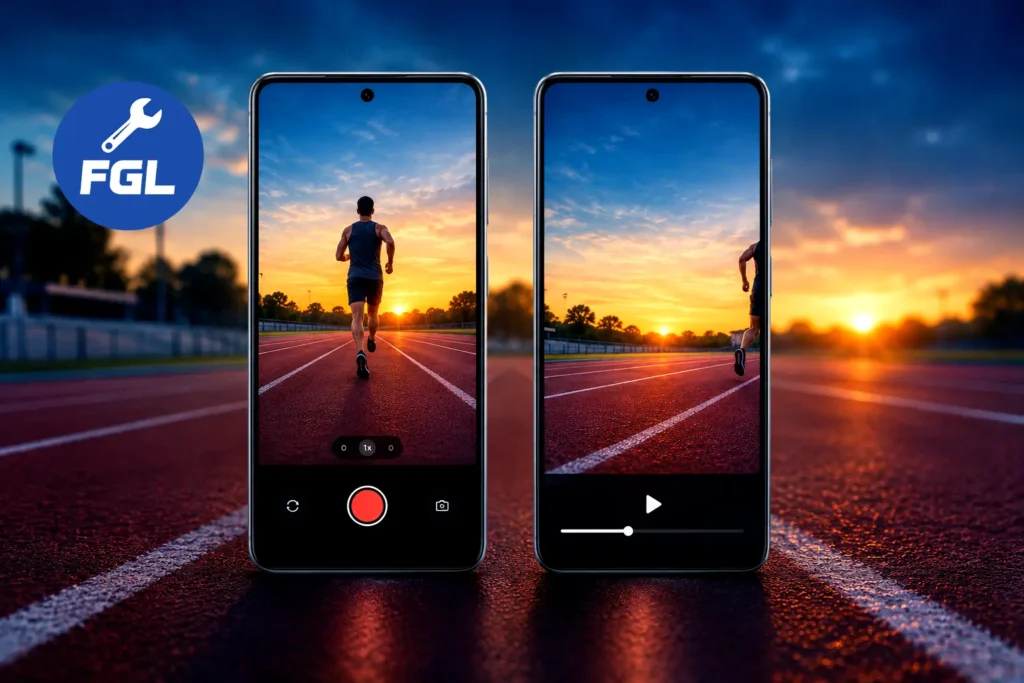
You are recording a runner on your Pixel. You zoom in, and the screen looks perfect, with the person sitting right in the middle of the frame. You stop recording, sure that you got the shot.
Then you play the clip back. Part of the video is empty, or the runner has slipped to the very edge of the picture. What you saw on the screen is not what the phone saved.
That is what some Pixel owners are describing right now. The preview shows one scene, and the saved file shows another. Nothing warns you while you are recording, so you only find out afterward, when the moment is already gone.
This guide explains what has been reported, what is still unknown, and what you can try today to lower the chances of losing an important shot.
Quick Fix: Things Worth Trying First
These are quick checks, not a confirmed fix.
- Test before you trust it. Record a 10-second clip at the same zoom level, then watch the saved file in Google Photos.
- Change the stabilization option. If your video settings offer one, switch to another choice and test again.
- Use less zoom. Walk closer when you can instead of pushing the zoom to its limit.
- Restart and update. Restart the phone and install any Pixel Camera update waiting in Google Play.
- Leave some margin. Frame the subject a little wider than you normally would.
What Is the Missing-Subject Bug?
In simple words, the video your Pixel saves is framed differently from the preview you watched while recording. At high zoom, a moving subject can slide toward the edge of the clip or drop out of parts of it, even though it looked centered on screen.
The newest example comes from a Pixel 11 owner on Reddit who followed a pedestrian at 18x zoom, recording in 4K at 60fps with default stabilization. The person stayed visible in the preview, but parts of the saved video did not show them. The same owner described similar behavior while tracking moving cars. Android Authority covered the report on October 23, 2026.
This is a different issue from the camera app crashing or showing a black preview. If your camera does not open properly at all, the black screen fix covers that separate problem.
Which Pixel Models Have Reported This Issue?
The latest report involves the Pixel 11, but the complaint is not new. Similar stories reach back several generations:
- Pixel 6 Pro: subjects drifted sideways at roughly 4x zoom and above.
- Pixel 8 Pro: subjects that looked centered at 5x ended up near the bottom of the recorded video.
- Pixel 9 Pro: one owner reported losing airplanes and helicopters from saved footage at full zoom, even while keeping them centered.
- Pixel 9 Pro XL: another owner shared a clip showing the preview and the saved recording out of step.
Android Authority also saw a milder version of the mismatch on its own Pixel 9 Pro XL, while a Galaxy S26 FE at 10x zoom showed nothing comparable. Heavy zoom seems to make the problem easier to spot, but that is a pattern in user reports and not an official finding.
What Is Confirmed and What Is Not
Here is the honest picture right now:
- Shown by user clips and testing: several owners have shared recordings where the saved framing differs from the preview, and Android Authority reproduced a similar gap on its own Pixel 9 Pro XL.
- Not confirmed: the cause. Video stabilization and lens switching have both been suggested, but neither has been proven.
- Not available yet: any statement from Google. Android Authority said it had reached out to Google for comment; its report did not include a response. So this is a user-reported issue, not a bug Google has confirmed.
That means nobody can promise a permanent fix today. The steps below are workarounds that helped some owners in earlier reports, not guaranteed solutions.
Why Might This Happen?
Two theories are being discussed. The first is stabilization. Electronic stabilization generally works by cropping into the image and shifting the visible area to cancel hand shake, so in theory a mismatch between that area and the preview could move your subject. The second is lens switching. When the phone hands over between cameras at certain zoom levels, the two feeds may not line up perfectly, as one commenter suggested.
Neither idea explains everything. One Pixel 9 Pro XL owner reported that turning stabilization off changed nothing, so more than one factor may be involved.
How to Reduce the Problem, Step by Step
1. Confirm That It Is Really Happening
Record a short clip with the same subject, zoom, and settings you used before. Then open the saved video in Google Photos and compare it with what you remember seeing on the screen. If the framing matches, the problem may only appear in certain conditions, such as strong zoom with a moving subject, so repeat the test under those conditions.
2. Try a Different Stabilization Setting
In older reports, stabilization was the setting that made a difference for some people. According to Android Authority’s report, a Pixel 6 Pro owner found, after troubleshooting with Google support, that switching from Standard to Active kept the subject centered. Pixel 8 Pro and Pixel 9 Pro owners reportedly saw improvement with stabilization off.
To look for the option, open Camera, switch to Video mode, and open Video Settings, then Stabilization. Menu names can differ by phone model and app version, and no single choice is guaranteed to work. Google’s official Pixel specs list Active stabilization as a 1080p feature on Pixel 11 phones. If you switch to Active stabilization, check the available resolution before recording, as 4K may not be available with that setting. Test each change with a short clip. Keep in mind that switching stabilization off can make handheld footage look shakier, so a tripod helps at high zoom.
3. Lower the Zoom and Leave a Margin
Most reports involve strong zoom, so the simplest workaround is to move closer and use a smaller zoom level. Keep the subject near the middle with some empty space on every side, so a small shift does not push them out of the picture. It may also be worth testing another resolution or frame rate, since the Pixel 11 report used 4K at 60fps. No source shows that this solves the issue, but it costs nothing to try.
4. Restart the Phone and Update the Camera App
A restart clears small temporary glitches, and an updated Camera app may include fixes. Restart your Pixel from the power menu, then open Google Play and check whether a Pixel Camera update is waiting.
5. Clear the Camera App Cache
Touch and hold the Camera icon, tap App info, choose Storage and cache, then tap Clear cache. This only removes temporary files. Avoid Clear storage, because that resets the app’s data. No report proves that clearing the cache fixes this specific bug, so treat it as a general cleanup step.
When to Contact Google
If subjects go missing even at low zoom, across many clips, or after every step above, it is worth reporting. Keep two things: the saved video, and a screen recording that shows the preview during the same shot. Write down your phone model, zoom level, resolution, stabilization setting, Android version, and Camera app version. Then share them in the Pixel Community or with Pixel Support. A clear side-by-side example is much easier for a support team to check than a general description.
Final Thoughts
For now, this looks like a recurring pattern in user reports across several Pixel generations, not a one-off glitch on a single phone. Until Google explains it, the safest habit is a quick test clip before any event you cannot repeat, plus a little extra room around your subject.
Frequently Asked Questions
Does the same bug affect photos?**
The reports covered so far describe video only. Nothing in them says photos are saved with different framing. If you want to check, take a photo and a short video from the same spot, then compare both with the preview.
Can I fix a clip afterward by cropping or editing it?**
Editing can only work with what the camera recorded. If the subject was never captured in part of the picture, trimming or cropping cannot bring it back.
Does moving the phone faster hide the problem?**
In Android Authority’s test on a Pixel 9 Pro XL, quicker movement made the mismatch smaller but did not remove it. It is not a real fix, and fast movement can spoil the shot itself, so a short test clip is a better habit.

- Google Pixel Battery Drain and Overheating: Causes and Fixes - October 25, 2026
- Google Pixel Video Bug: Subject Missing in Saved Recordings - October 25, 2026
- iPhone 18 Pro Earpiece and Speaker Crackling or Popping: Is It Fixable? - October 25, 2026