
Published: July 24, 2026
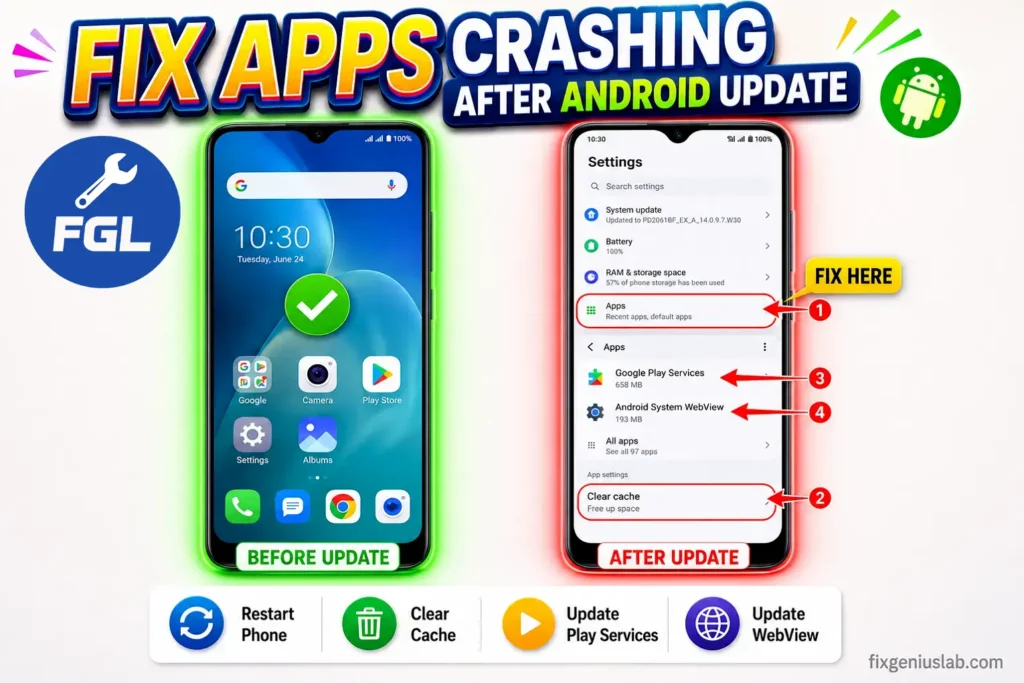
Sometimes, after an Android system update, apps start crashing. One common reason is that Android rebuilds system cache after an update while some apps still rely on outdated cached data. As a result, the apps cannot work properly and keep crashing.
Outdated app versions, corrupted cache files, or a buggy Google Play Services update can also cause this issue.
This article covers 10 ways to fix apps that keep crashing after an Android update. It also explains why the problem happens and which fixes usually solve it.
Why Apps Keep Crashing After an Android Update
After an Android update, the system changes many files. Some apps work fine right away, while others take time to adjust to the new Android version. Below are the most common reasons why apps start crashing after an update.
Incompatible apps. Some apps are not updated for the latest Android version. Until the developer releases a new update, the app may keep crashing or stop working properly.
Old cache files. After a major Android update, cached app data may no longer be compatible with the updated system. Until the app rebuilds its cache, it may crash, freeze, or close unexpectedly.
Outdated Google Play Services. Many Android apps depend on Google Play Services. If it is not updated, some apps may not work properly and can start crashing.
Android System WebView issues. Many apps use Android System WebView to display web content inside the app. If WebView is outdated or has a bug, the app may crash while opening certain pages.
Software bugs. Sometimes the Android update itself has bugs. Google or your phone manufacturer usually fixes these problems in the next software update.
Low storage space. If your phone is running out of storage, apps may not have enough space to work properly after the update.
Background optimization. After installing an Android update, the system continues optimizing apps in the background. Opening apps before this process finishes can sometimes cause crashes or slow performance.
| Cause | Why It Happens | Recommended Fix |
|---|---|---|
| Incompatible app version | The app is not updated for the latest Android version | Update the app from the Play Store |
| Old or corrupted cache | Old cache files conflict with the new Android update | Clear the app cache |
| Outdated Google Play Services | Google Play Services is not updated | Update Google Play Services |
| Android System WebView issue | WebView is outdated or has a bug | Update Android System WebView |
| Software bug | The Android update may contain bugs | Install the latest software update |
| Low storage space | The phone does not have enough free storage | Free up storage space |
| App optimization is not complete | Android is still optimizing apps after the update | Restart your phone and wait a few minutes |
10. Quick Fixes
Each method fixes a different cause of the problem. Check the app after every fix before trying the next one.
- Restart Your Phone
Restarting phone often fixes problems that appear without any obvious reason. This happened on my own phone. My phone’s fingerprint sensor suddenly stopped working, and USB file transfer also disappeared. After I restarted my phone, the fingerprint sensor started working again. I then cleaned the charging port, and USB file transfer returned to normal.
2. Update the Affected Apps
Open the Google Play Store and update the app that’s crashing. Developers often release updates after an Android update to fix compatibility problems and stop the app from crashing.
3. Clear the app cache
Go to Settings > Apps > App name > Storage > Clear Cache. This removes old temporary files that may be causing the app to crash. Your photos, files, and account will stay safe.
4. Clear the app data
If clearing the cache doesn’t fix the problem, clear the app’s data from the same menu. This resets the app to its default state and removes locally stored settings, downloaded files, and sign-in information. You’ll need to sign in again when you reopen the app.
Use this method only if the app continues crashing after clearing the cache, as it removes the app’s local data but doesn’t delete your account.
5. Free up storage space.
Delete unused apps, old downloads, or media you’ve already backed up. Keeping some free storage available helps Android handle app updates, temporary files, and background processes more efficiently. If your device keeps showing a warning, check out this guide on how to fix mobile storage full problem.
storage full warning.
6. Update Google Play Services
Google Play Services handles many Android features in the background. If it hasn’t updated properly after a system update, some apps may become unstable. Follow Google’s official instructions to check its status, then restart your phone. In some cases, outdated Play Services can also lead to unusual battery drain.
7. Update Android System WebView
Many Android apps use Android System WebView to display web content. If it’s outdated or affected by a bug, apps may crash when opening web-based screens.
Update Android System WebView from the Google Play Store if an update is available. On some devices, WebView updates are included with Google Chrome, so make sure Chrome is up to date as well.
8. Check for another Android update
Software updates sometimes introduce unexpected bugs that affect app stability. Phone manufacturers often release follow-up updates to address these issues. Install the latest Android update for your device, then check whether the apps still crash.
9. Try Safe Mode
Restart your phone in Safe Mode and open the app again. Safe Mode temporarily disables third-party apps. If the app works normally, another installed app is likely interfering with it. Restart your phone normally and uninstall any recently installed or suspicious apps to identify the cause.
10. Reset app preferences
If the problem continues, reset your app preferences from your phone’s app settings. This restores default app preferences without deleting your personal files, photos, or app data. Restart your phone afterward and check whether the app works normally.
Factory Reset
A factory reset should only be considered after you’ve tried every other troubleshooting method. It returns your phone to its default settings, which means your apps, settings, and locally stored data will be removed. You’ll also need to sign in again and reinstall the apps you use.
Whenever possible, it’s better to resolve the problem without resetting your phone. Doing so saves time and lets you keep your current setup. If you’re unsure about performing a factory reset, consider getting help before proceeding. If you still decide to reset your phone, back up your important files first to avoid losing personal data.
Google Play Store Apps Keep Crashing After Update
If the Play Store itself is crashing, start by clearing its cache from Settings > Apps > Google Play Store > Storage. If the problem continues, clear the app data and sign in again if required. You can also check for Play Store updates through its app settings. Restart your phone afterward and test the Play Store again.
Samsung Apps Keep Crashing After One UI Update
Samsung’s One UI adds extra features and system apps on top of Android, so some issues may be related to Samsung-specific apps or One UI components after an update. Clear the cache for the affected app first, then check Settings > Software update for any available One UI updates. Samsung often releases follow-up updates that include stability improvements after major One UI releases.
WhatsApp Keeps Crashing After Android Update
WhatsApp crashes after an update are usually tied to an outdated app version or a corrupted media cache. Update WhatsApp from the Play Store first, then try Settings > Apps > WhatsApp > Storage > Clear Cache. Avoid clearing app data unless necessary, since this can affect locally stored chats if you haven’t backed up to Google Drive recently.
Instagram Keeps Crashing After Android Update
Instagram may experience compatibility issues after an Android update, especially when using features that rely on web content. Update Instagram and Android System WebView from the Play Store, then clear Instagram’s cache. If the issue continues, reinstalling the app can help replace corrupted app files and restore normal performance.
Android System WebView Causing Apps to Crash – Fix
WebView-related issues can affect multiple apps at the same time, especially apps that load web-based content. Update Android System WebView from the Play Store if a newer version is available. If you don’t see an update option, check whether Chrome needs an update instead, as some devices use Chrome as the WebView provider.
Additional Tips
If the common troubleshooting steps don’t help, these checks can identify less obvious causes.
Recheck app permissions. After an Android update, some apps may request permissions again or behave differently if access settings have changed. Go to Settings > Apps > [app name] > Permissions and make sure the required permissions are enabled.
Check battery optimization settings. Battery optimization can limit background activity and cause some apps to behave unexpectedly when they resume. Under Settings > Battery > Battery optimization, set frequently used apps to “Not optimized” or “Unrestricted” and check whether the issue improves.
Check Developer options if you’ve enabled them before. A setting called “Don’t keep activities” forces Android to close apps as soon as you leave them, which can cause problems when reopening them. If Developer options are enabled, make sure this setting is turned off.
FAQ
Why do apps crash only after an Android update?
Apps usually crash after an Android update because some apps or system components need to be updated to work properly with the new Android version.
Conclusion
Start with a restart, then update your apps, Google Play Services, and Android System WebView. Clearing cache and freeing up storage solve most remaining cases. Save factory reset for last, and reach out to your device manufacturer’s support if crashes continue after trying everything above.

- Fix Google Pixel Screen Flickering & Green Line Issue (Step-by-Step Guide) - October 27, 2026
- Google Pixel Battery Drain and Overheating: Causes and Fixes - October 25, 2026
- Google Pixel Video Bug: Subject Missing in Saved Recordings - October 25, 2026