
Updated: September 19, 2026
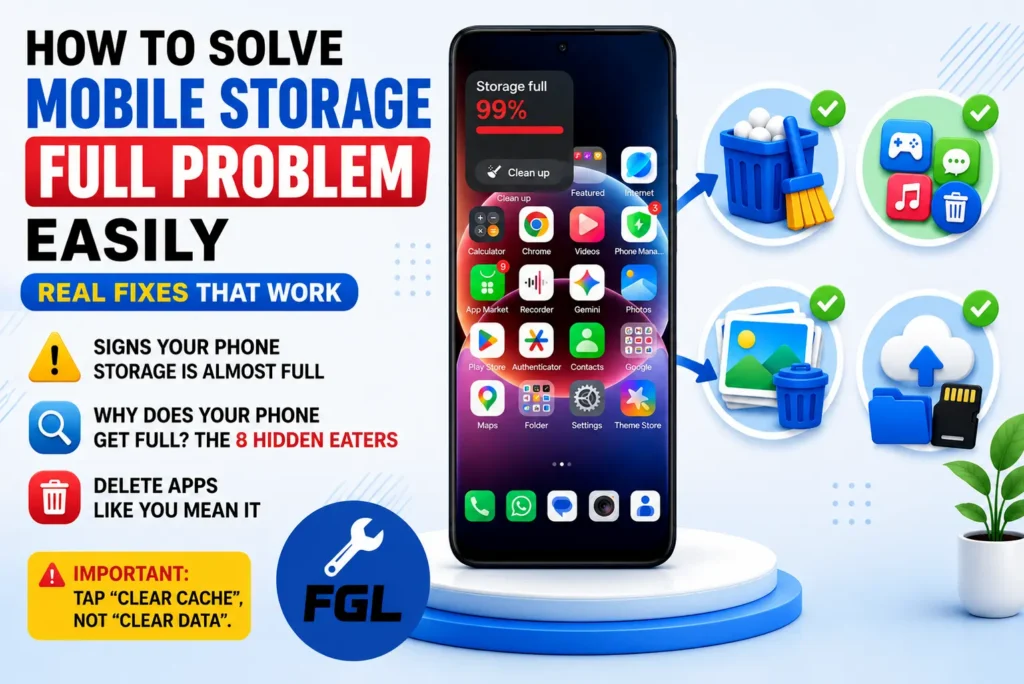
Your phone’s storage fills up based on your usage; if you store large files, capture high-quality images and videos, or keep duplicate files, it is quite common for the storage to fill up.
If you need more storage space, instead of deleting important files, remove duplicate files and unused apps, clear the cache, and move your photos and videos to Google Photos or iCloud storage. This can free up storage space.
How to Check What’s Using Your Phone Storage
If your phone storage is full, first check what’s using the most space instead of deleting files at random.
Android: Settings → Storage
iPhone: Settings → General → iPhone Storage
Check the storage list to see which files are taking up the most space, then decide which files you want to keep and which ones you want to delete.
Why Is My Phone Storage Full After Deleting Everything?
If your phone still shows full storage with a red storage bar after deleting data, check the Recently Deleted folder. When you delete a file, it often moves to the bin or Recently Deleted folder first. This feature helps you restore a file if you delete something by mistake. The file is completely removed from your device only after you permanently delete it.
Clear the cache to remove temporary files. Low storage can also make your phone slow. If you’re facing this issue, our Fix Slow Android Phone guide explains other ways to improve phone performance.
How to Clear Hidden Files Taking Up Phone Storage
Recently Deleted or Trash folders:
Gallery → Recently Deleted → Delete All
App cache:
Android: Settings → Apps → Select App → Storage → Clear Cache
WhatsApp media:
WhatsApp → Settings → Storage and Data → Manage Storage
Clear Social Media Files to Free Up Storage
Using social media can fill up your storage because chats, images, shared files, voice messages, and videos can be saved automatically. If you don’t turn this off manually, these files continue taking up storage space.
Delete these files if you don’t need them. You can also turn off automatic saving if you don’t want received media to be saved automatically.
To Change WhatsApp Media Saving Settings
Open the WhatsApp chat → Tap the contact or group name → Tap Media visibility → Select No → Tap OK.
To Review and Delete Large Media Inside WhatsApp:
Open WhatsApp → Settings → Storage and Data → Manage Storage.
Review the large media files and delete the ones you no longer need.
If you also want to clear WhatsApp’s temporary cache, go to your phone’s Settings → Apps → WhatsApp → Storage → Clear Cache. Do not select Clear Data, as it removes the app’s local data.
Clean Out Your Downloads Folder
The Downloads folder can contain files you no longer need, such as PDFs, APKs, and videos.
Open File Manager → Downloads → Remove files you no longer need.
Move Old Photos and Videos to the Cloud
Instead of deleting photos you might need later, back them up to Google Photos or iCloud, then remove the local copies from your device.
- Open Google Photos or iCloud and sign in.
- Turn on Backup.
- Choose the photos and videos you want to back up.
- Wait for the upload to finish before removing anything from your device.
Don’t Forget Screen Recordings
Screen recordings can take up a lot of storage because video files are usually larger than photos.
Open your Gallery or File Manager, find the Screen Recordings folder, and delete recordings you no longer need.
Avoid Mistakes That Make the Problem Worse
Deleting system files manually
Don’t remove files from system folders. These files help your phone work properly, and deleting the wrong ones can cause problems.
Installing cleaner apps
Most phones already have built-in storage tools. Extra cleaner apps are often unnecessary and can add more clutter.For more storage cleanup options, see Google’s Android storage guide.

- Fix Google Pixel Screen Flickering & Green Line Issue (Step-by-Step Guide) - October 27, 2026
- Google Pixel Battery Drain and Overheating: Causes and Fixes - October 25, 2026
- Google Pixel Video Bug: Subject Missing in Saved Recordings - October 25, 2026