
Updated: September 19, 2026
Android phones can become slower over time for several reasons, including limited storage, too many background apps, outdated software, or temporary system files that accumulate with regular use. You may notice apps taking longer to open, delayed touch response, occasional freezing, or reduced overall performance during everyday tasks.
A slow Android phone does not necessarily mean the hardware is failing. In many cases, performance issues are caused by software-related factors such as low available storage, excessive background activity, outdated system updates, or apps consuming too many system resources. Identifying the actual cause before applying a fix helps you avoid unnecessary changes and makes it easier to choose the solution that is most likely to improve performance.
This guide explains practical ways to speed up an Android phone, why each method works, and when poor performance may be caused by hardware rather than software.
Whether your phone takes too long to open apps, freezes while switching between tasks, or responds slowly to taps, the underlying cause is usually something that can be diagnosed and fixed without replacing the device.
If you are wondering how to make your Android phone run faster, follow the guide below to learn practical methods that can help improve your phone’s speed and overall performance.
Why Android Phones Become Slow and Freeze
Before fixing the issue, it’s important to understand the causes. Most performance problems happen due to simple system overload.
- Low Storage Space
When internal storage is almost full, Android cannot run smoothly. It slows down app loading and system response. - Too Many Background Apps
Apps running in the background continuously consume RAM and CPU power. - System Cache Build-Up
Temporary files accumulate over time and slow down performance. - Outdated Software
Old system versions may contain bugs or performance issues that slow down the phone. - Heavy Apps and Games
High-end apps use a lot of memory, which affects older devices.
1. Restart Your Phone
Restarting your phone can fix temporary glitches and refresh system processes. It may improve performance if background tasks or minor software issues are causing slowdowns, but it will not solve problems caused by low storage or faulty apps.
When you restart your phone, temporary processes are closed and Android reloads important system services. This can clear minor temporary issues and improve responsiveness when background processes are causing slowdowns.
Press and hold the power button, then tap Restart. The exact steps can vary by phone manufacturer and Android version.
Restarting your Android phone refreshes temporary system processes and clears memory used by background tasks. If your phone has been running continuously for several days, a restart may improve responsiveness and fix minor temporary issues. However, if the phone remains slow after restarting, the problem is likely related to storage, installed apps, or software rather than temporary memory usage.
Android keeps many background processes active while the phone is running. Restarting closes those processes and reloads essential system services, giving the operating system a clean start.
2. Clear the App Cache
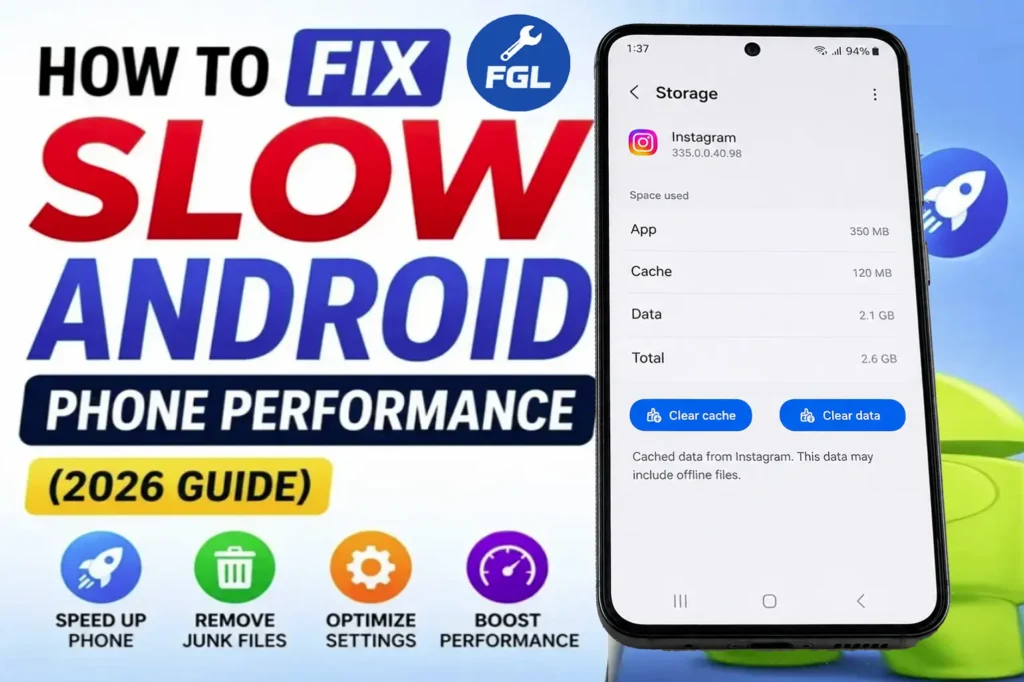
Clearing cache can help when a specific app is behaving incorrectly, taking unusual storage space, or showing performance problems. However, cache is not always harmful because Android uses it to load apps faster. You can also clear the cache of heavy apps like Instagram.
How to Clear an App’s Cache
Clearing cache will not delete any of your personal data or login info. It only removes temporary files no longer needed by the device. Your photos, messages, passwords, and saved logins remain safe.
- Open Settings
- Open Apps or Application Manager ⦁ Choose heavy apps like browser or social media apps
- Open Storage section
- Clear Cache
How much space will you get back?
The amount of cache stored depends on how often you use an app. Browsers, messaging apps, and social media apps usually build larger cache files over time. Clearing unnecessary cache can free storage space and sometimes improve app performance without deleting your personal data.
Keeping some free storage space allows Android to manage temporary files, app updates, and system processes more efficiently. When storage becomes almost full, apps may take longer to open and some updates may fail.
How often should you do this?
You do not need to clear app cache on a fixed schedule. Consider clearing it when a specific app is behaving unusually, using excessive storage, or experiencing performance problems. Android normally manages cached files automatically.
3. Remove Unwanted Apps
Unused apps take up storage, and some may continue to perform background activity depending on their settings. Removing apps you no longer need can free storage and reduce unnecessary background activity.
How to find unused apps:
Go to Settings → Apps and review apps you no longer use. If you no longer need an app, consider uninstalling it.
Which apps to never remove:
Do not remove system apps like “Android System”, “Google Play Services”, “Settings”, “Phone”, “Messages”. Removing these can break your phone.
4. Free Up Internal Storage Space
If your phone’s internal storage is nearly full, performance can suffer and some apps or system processes may have less room to work with. Check how much storage is available and remove or move files you no longer need.
When your Android phone starts running slow, one of the most common reasons is low storage. You can learn more about this in our guide on fixing mobile storage full problems, which explains how to quickly free up space and improve performance.
What to delete or move:
- Deleting old and unnecessary photos and videos
- Removing duplicate or large files
- Moving media to cloud storage services
- Using external SD card if supported by the device
Keeping some storage available gives Android room for temporary files, app updates, and normal system operations. If storage is almost full, freeing up space may improve responsiveness.
How to check your storage:
Go to Settings → Storage. You will see a bar showing how much is used and how much is free. If your storage is almost full and only a small amount of space remains, your phone may start showing performance problems. Try keeping enough free space for apps, updates, and temporary files.
Android performs better when enough free storage is available for app updates, temporary files, and background system tasks. If internal storage is nearly full, apps may take longer to open, updates can fail, and overall system performance may decrease.
Photos, videos, downloaded files, and offline media are usually the biggest storage users. Reviewing these folders regularly can free up significant space without affecting important system files.
5. Update Software Regularly
Software updates can fix bugs and improve your phone’s performance and security. If your phone feels slow, check for updates for both the system and your apps.
How to update your device
- Open Settings
- Tap on Software Update
- Check for available updates
- Download and install the latest version
If your phone is older and struggles with heavy apps, try lighter versions where available. You can also remove apps you do not use or use the web version of some services instead.
Many apps run in the background even when you’re not using them. They use memory and system power, which slows down your device.
On some Android phones, you can review an app’s battery or background activity under Settings → Apps or Settings → Battery. Menu names and available controls vary by manufacturer and Android version. Restrict background activity only for apps that do not need to run continuously.
Advanced users can explore Developer Options, but changing background process limits is usually not recommended because it may cause notification delays and unexpected app behavior.
Warning: Do not set to “No background processes” or WhatsApp messages will not arrive until you open WhatsApp.
6. Manage Background Applications
How to Find Which App Is Making Your Phone Slow
Sometimes one app is responsible for most of the slowdown. Before uninstalling apps, see which applications are using the most battery and storage.
Check battery usage
- Settings
- Battery
- Battery Usage
- Look for apps using unusually high power
Check storage usage
- Open Settings
- Go to Storage
- Review apps using the most space
Removing or restricting unnecessary heavy apps can improve performance.
7. Reduce or Disable Animations
Android devices have animations to make our screen transitions look smooth. It looks nice. But on older phones these animations can slow things down instead of smoothing them out.
How to enable Developer Options:
Go to Settings → About Phone → Find Build Number → Tap it 7 times quickly
How to reduce animations:
Go to Settings → System → Developer Options
Find these three settings:
- Window animation scale
- Transition animation scale
- Animator duration scale
Improve Speed
- Enable developer options via build number taps
- Open Developer Options
- Slide the animation sliders down – or switch them off completely
Change each from 1x to 0.5x or Off
Reducing animations makes navigation quicker.
8. Check for Malware or Harmful Apps
Sometimes performance issues are caused by harmful applications running in the background. This type of software takes up memory without warning and can affect device stability.
Signs that your phone may have malware:
- Pop-up ads appear even when no app is open
- Your phone heats up when you are not using it
- Battery drains unusually quickly even when you are not using the phone heavily.
- Strange app names appear in your app list that you did not install
- Your data usage is very high even when you are not using the phone
What to do if you see these signs:
You can use Google Play Protect to check your apps for possible security risks. Some phone manufacturers also provide their own security tools. If you find an app you do not recognize, check its permissions and uninstall it if you do not need it.
9. Reset App Settings If Needed
If an app is not working as expected, resetting app preferences can restore the default app settings without deleting your personal files. This can help if an app was disabled, the wrong default app was selected, or a permission was changed.
How to reset app settings:
Open Settings → Apps and look for Reset app preferences in the available app settings or menu. The exact location and wording can vary by Android version and manufacturer.
What changes: Disabled apps re-enable, notifications reset, default apps clear, permissions reset.
What does NOT change: Your photos, messages, contacts, and downloads remain safe.
10. Factory Reset
When nothing else works, the last option is a factory reset, which clears everything and sets the phone up completely reset.
A factory reset can solve serious software problems, but it removes all personal data from your phone. Always create a backup before resetting to avoid losing important photos, videos, and documents.
How to factory reset
Open Settings and look for System, General management, or Reset options, depending on your phone. Select Factory data reset and follow the on-screen instructions. The exact steps vary by manufacturer and Android version. A factory reset erases your apps, settings, and personal data, so back up anything important first.
Important: Always create a backup before performing a factory reset because the process erases personal data stored on the device.
After the reset, set up your phone again and reinstall only the apps you need. If an app or software problem was causing the slowdown, the phone may run better after the reset.
If the issue continues, Google’s official Android help page explains more reliable ways to fix performance problems.

- Google Pixel Battery Drain and Overheating: Causes and Fixes - October 25, 2026
- Google Pixel Video Bug: Subject Missing in Saved Recordings - October 25, 2026
- iPhone 18 Pro Earpiece and Speaker Crackling or Popping: Is It Fixable? - October 25, 2026