
Published: August 05, 2026
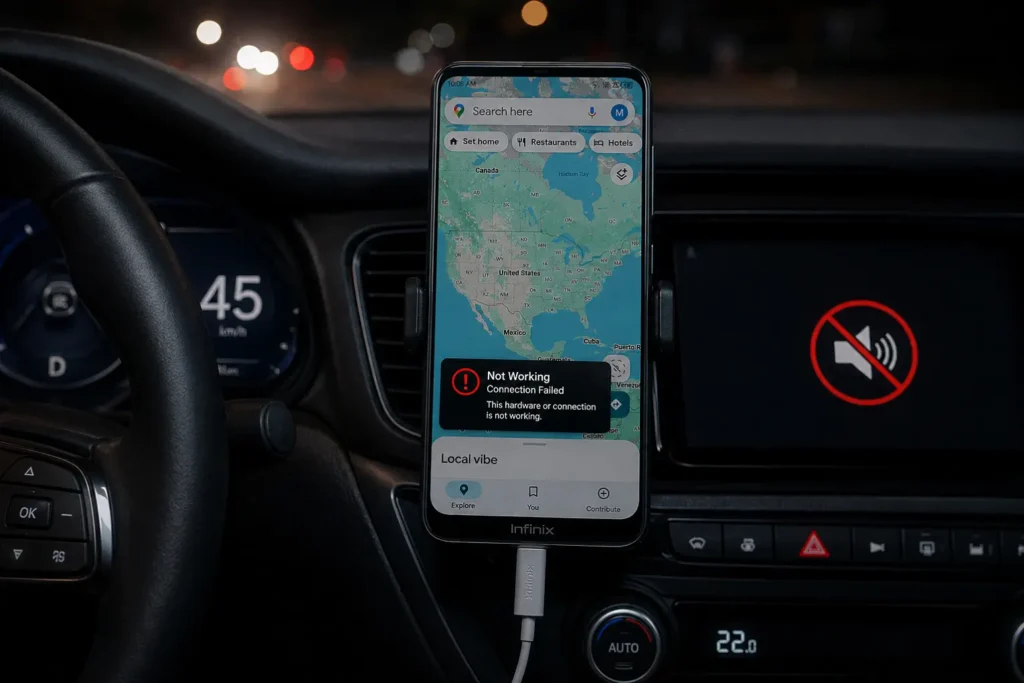
If you are using Google Maps voice guidance or want to start using it, this guide will help you understand how to enable, mute, or disable voice directions. If Google Maps was working normally but suddenly stopped giving voice directions while you are driving, we will also cover simple ways to fix this issue.
In this article, we cover different topics related to Google Maps voice guidance so that users facing common voice navigation problems can find the right solution in one place and save time.
Note: If you are experiencing GPS accuracy or routing issues along with audio problems, we also have solutions to fix Google Maps wrong directions.
Quick Fix
Open Google Maps and go to:
Profile picture → Settings → Navigation
Then check:
- Guidance volume: Louder or Normal
- Mute state: Unmuted
- Play voice over Bluetooth: On (when using a car or Bluetooth headset)
- Play voice during phone calls: On
If voice guidance is still not working, open:
Settings → Apps → Maps → Permissions
Allow:
- Location
- Microphone (if you use voice search)
If Google Maps voice guidance suddenly stopped working after working normally, check the app’s mute settings, media volume, and Bluetooth connection. If the issue persists, close and reopen Google Maps or restart your phone.
Why Google Maps Voice Stops Working
Voice guidance depends on your phone’s volume, Google Maps sound settings, and the device where audio is being played. If any of these settings are wrong, Google Maps may stay silent even when navigation is active.
The most common cause is the in-app sound setting. During navigation, a speaker icon appears in the top-right corner of the screen. Tapping it switches between Sound, Alerts, and Mute on Android. It is easy to accidentally change this setting to Alerts, which only plays traffic and crash warnings instead of turn-by-turn directions.
Another common cause is Bluetooth. When your phone is connected to a car stereo or Bluetooth headset, Google Maps may send voice directions to that device. If the connection is unstable or the Play voice over Bluetooth setting is incorrect, you may hear the map’s chime but not the spoken instructions.
If the in-app sound settings, media volume, and Bluetooth connection are correct, the issue may be caused by a temporary app or device problem. Closing and reopening Google Maps or reconnecting the Bluetooth device can often restore voice guidance without changing your navigation settings.
How to Enable Voice Guidance on Android
To turn voice guidance on, open Google Maps and tap your profile picture in the top right, then go to Settings and Navigation. Under Guidance volume, choose Normal or Louder — Softer can sometimes be too quiet to notice in a moving car. On Android, this same screen has a Mute state option; it should show Unmuted.
Once a route is active, look for the speaker icon on the navigation screen. If it shows Mute or Alerts Only, tap it until full voice guidance is enabled. If directions are still too quiet, increase your phone’s media volume while Google Maps is speaking, since navigation prompts usually use the media audio channel rather than the ringtone volume. If you are connected to a car or Bluetooth headset, check that Google Maps is using the correct audio output for voice directions.
🎯 Bonus Pro Tip
Check your phone’s Media volume, not the ringer volume. Google Maps voice directions play through the media audio channel, so even if your ringtone volume is high, you may not hear navigation instructions when media volume is low or muted.
How to Disable or Mute Google Maps Voice
If you want to use Google Maps without spoken directions and only follow visual guidance, tap the volume icon in the top-right corner during navigation and switch it to Mute. This stops turn-by-turn voice directions while keeping the map and distance markers active.
If you still want to hear traffic and hazard alerts without full turn-by-turn narration, choose Alerts instead of Mute. This option is useful when you already know the route but still want important warnings. The setting may return to Sound when you start a new route unless you change the default settings.
Fix Google Maps Bluetooth Voice Problems
Bluetooth is one of the most common reasons Google Maps voice guidance stops working because your phone, car stereo or headset, and Google Maps need to send audio to the correct device.
Start by checking that Play voice over Bluetooth is turned on in Settings > Navigation if you want directions through your car speakers. Turn it off if you want voice directions from your phone speaker. If the wrong option is selected, Google Maps may still be playing directions, but the audio is going to a device you are not hearing. Also check that your car audio source is set to Bluetooth instead of USB or radio.
If directions still do not come through, disconnect and reconnect the Bluetooth connection. Another possible issue is the car’s equalizer or audio balance settings blocking navigation sound while music continues to play normally. If music works but voice guidance does not, check the car’s audio settings as well. When Bluetooth is not working correctly, turning off Play voice over Bluetooth temporarily sends voice directions through your phone speaker, which helps identify whether the problem is with Google Maps or the Bluetooth connection.
Google’s own support documentation on fixing voice navigation problems provides additional troubleshooting steps for voice guidance issues.
Advanced Troubleshooting When Nothing Works
If the settings above are correct and voice still does not play, the issue may be related to the Google Maps app or your phone settings. First, check for a pending Google Maps update, as newer versions may include fixes for audio-related issues.
If the problem continues, turn off Do Not Disturb mode and check that Google Maps is not muted at the phone’s system sound level. You can also close and reopen Google Maps or restart your phone to refresh the app and audio connection.
FAQs
Why does Google Maps show the route but not give voice directions?
This usually happens when voice guidance is muted, set to Alerts Only, the media volume is low, or Google Maps is sending audio to another connected device. Check the speaker icon during navigation, review the voice settings, and check Bluetooth if the problem continues.
Does Google Maps voice work with offline maps?
Yes, Google Maps can provide turn-by-turn voice directions with downloaded offline maps. However, some features may work better with an active internet connection, especially when Google Maps needs additional information during navigation.

- iPhone Camera Won’t Focus Up Close? How to Fix Blurry Lens Switching - September 28, 2026
- How to Fix Google Maps Location Sharing Not Updating or Working - September 18, 2026
- Vodafone WiFi Calling Not Working? 7 Proven Fixes for UK Users - September 16, 2026
