
Published: October 17, 2026
You swipe up to unlock your Pixel and nothing happens. The screen ignores you for a few seconds and then recovers, or a page scrolls the opposite way from your finger. If this started after you installed Android 17, you are not imagining it, and it may be a software problem rather than a broken phone.
This guide separates what Google itself recommends from what other owners say has helped. Start with the Google-backed steps, then try the owner-reported workarounds one at a time, so you do not spend time on fixes that have no official support.
What Is Happening on Pixel Phones With Android 17
Android 17 began rolling out to supported Pixel phones on June 16, 2026. Within the first week, owners across Reddit and Google’s support forums described touchscreens that behaved unpredictably. Reports covered the Pixel 7, 8, 9 and 10 series. According to press coverage, Google’s Pixel Community account acknowledged the reported touch issues and suggested troubleshooting steps, though no root cause has been published. Not every phone appears to be affected. If the screen flickers or shows a colored line instead, this Pixel screen flickering guide covers that problem.
Symptoms people have described
- The screen stops responding for several seconds, then recovers on its own.
- Swipes register in the opposite direction, for example an upward swipe scrolls the page down.
- Taps count twice, or not at all.
- In landscape mode, or in games and full-screen apps, part of the screen ignores touches. Video apps like YouTube are the most reported.
Because these reports began right after the same update across several phone generations, software looks like a more likely cause than worn-out hardware.
If touch works normally but apps slide sideways when you swipe home, you may be seeing the home screen animation glitch instead.
Check Whether a Fix Is Already Waiting for You
Open Settings > System > Software updates and install any update that is waiting. Google’s August 2026 release listed a fix for an issue that can cause the touch panel to become unresponsive in certain conditions. The note applies to the Pixel 10, 10 Pro, 10 Pro XL, 10 Pro Fold and 10a. It does not say this is the same problem as the Android 17 freezes described above, so do not expect it to cure every case.
The October update, which began rolling out on October 6 and 7, does not list a touch fix, but installing it is still worthwhile for the security patches.
If freezes continue after updating, or you are on a Pixel 7, 8 or 9 where the August fix does not apply, the sections below are your best next move.
Quick Fixes to Try First
Restart the phone
A restart clears temporary glitches and costs nothing. If the screen is frozen, Google advises holding the power button for about 30 seconds until the phone restarts.
Remove the case and screen protector
Google’s own touchscreen guide starts with this. Take off the case and any screen protector, clean the display, and test again. Google notes that you may not be able to put the screen protector back on afterwards, so try this when you are prepared to replace it.
Review the touch sensitivity setting
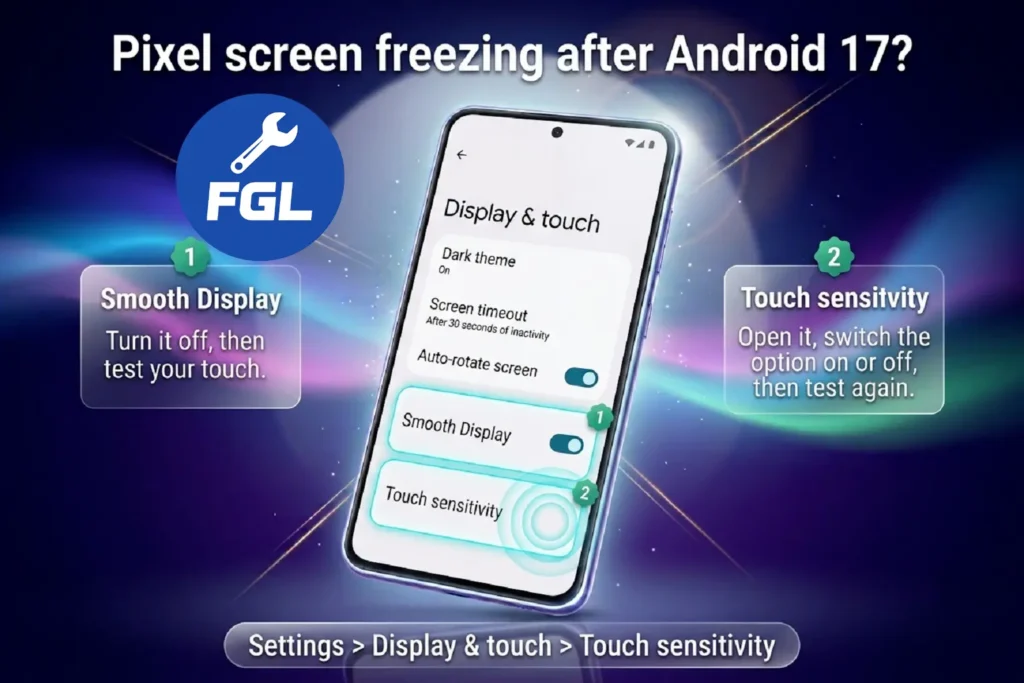
Open Settings > Display & touch > Touch sensitivity. According to Google, the Pixel 8a and earlier phones (including the Fold) have a Screen protector mode, and the Pixel 9, 9 Pro and 9 Pro XL have Adaptive touch. Switch the option on or off and check whether touch improves. Other models may show different options, so the switch on your phone may have a different name. On the Pixel 9, 9 Pro and 9 Pro XL, Google also lists a Touch diagnostics test under Display & touch.
Workarounds Reported by Pixel Owners
The ideas below come from user reports and press coverage, and none of them is confirmed as a fix in Google’s documentation. Some people found they worked, others saw no change, so treat them as low-risk experiments rather than cures.
- Turn off Smooth Display. It is under Settings > Display & touch. One user reported that touch stayed normal even after turning the feature back on, while other reports describe inconsistent results.
- Turn off triple-tap zoom. Some owners reported fewer erratic touches after disabling it in the Accessibility settings (under Magnification).
- Clear the launcher cache. Go to Settings > Apps > See all apps > Pixel Launcher > Storage & cache > Clear cache, then use the phone normally for a while. Press reports say Google suggested this step, but many users saw no improvement.
Change one thing at a time. If you adjust three settings at once and the problem disappears, you will not know which one mattered, and you will not know what to undo if something else misbehaves.
Find Out Whether an App Is Causing It
Pixel phones have had app-triggered touch freezes before. On Android 12, a bug tied to apps using an accessibility service that performs gestures made the screen pause briefly whenever the battery percentage dropped by one percent. Safe mode helps separate an app problem from a system problem, because it runs only the apps that came with the phone. Google’s Pixel Community account has also asked users reporting touch problems in games to test in safe mode, according to Android Authority.
On the Pixel 6 and later, press and hold the Power and Volume Up buttons for a few seconds, then touch and hold Power off or Restart and tap OK. You will see “Safe mode” at the bottom of the screen. Google notes that safe mode removes some home screen widgets and turns on airplane mode, so take a screenshot of your widgets first and switch airplane mode off afterward. Use the phone for a few minutes in that state.
- If touch works normally, a downloaded app is the likely culprit. Restart to leave safe mode, then remove recently downloaded apps one at a time, testing after each removal.
- If the freezes continue in safe mode, a downloaded app is less likely to be the cause, but safe mode alone cannot confirm it, so you can stop uninstalling apps and move on to the next steps.
Is It the Software or the Screen Itself?
Google’s screen troubleshooting guidance describes a simple drag test. Touch the top-left corner of the screen and slowly drag your finger toward the bottom-right corner without lifting, taking about ten seconds. If the Quick Settings panel and notifications follow your finger all the way down, Google says the problem is not caused by one area of the screen. If they release while you are still dragging, repeat the test, note where it lets go, and then contact Google support. A repeating spot is useful information for them, but it does not prove a hardware fault, since unresponsive areas have also been reported with the Android 17 bug.
If your Pixel screen keeps freezing or stops responding to touch, try these Pixel screen freezing fixes.
If Nothing Works
Send feedback to Google by opening Settings, scrolling to the bottom, and tapping About phone > Send feedback about this device. Mention when the problem happens and which apps were open, because specific details make a report more useful. A factory reset is the last resort in Google’s guidance, and it removes your apps and local data, so back up first and expect that a reset may not help if the cause is the update itself. If the screen fails even in safe mode, or the drag test lets go at the same spot every time, contact Google Pixel Support about repair options.
While you wait for a patch, our Pixel keyboard fix covers another input problem that Google addressed in the October update for Pixel 8 and newer, and the rest of our Android fix guides are there if something else misbehaves.
Frequently Asked Questions
Should I go back to Android 16 until the bug is fixed?
It is not a practical option for most people. Downgrading usually means flashing the phone, which can erase your data. On the Pixel 10, 10 Pro, 10 Pro XL and 10 Pro Fold, the May 2026 update also raised the bootloader’s anti-rollback version, so older Android 16 builds can no longer be flashed or booted after that update.
Why do the freezes seem to come and go?
Owners describe the problem as intermittent, and Google has not explained why. One Pixel 8 Pro owner described a freeze after roughly five swipes in YouTube Shorts, then recovery, then the same cycle again. Reports describe a repeating pattern, but nobody has confirmed what triggers it.
When should I contact support?
If the freezes continue in safe mode, or if the drag test lets go at the same spot every time, it is worth contacting Google Pixel Support for an assessment, though these signs do not prove that a repair is needed. When you do, tell them what happened in safe mode and where the drag test let go. If the problem started right after the update and only happens in some apps, a software cause is more likely, so install the latest update first.

- Fix Google Pixel Screen Flickering & Green Line Issue (Step-by-Step Guide) - October 27, 2026
- Google Pixel Battery Drain and Overheating: Causes and Fixes - October 25, 2026
- Google Pixel Video Bug: Subject Missing in Saved Recordings - October 25, 2026