
Published: October 21. 2026
You update your Galaxy phone to One UI 9, glance at the top of the screen, and something looks off. The Wi-Fi icon is gone. The alarm icon has vanished. Or you switch one icon off and a different one reacts instead. Before you blame your router, it helps to know that Samsung has already responded to these reports.
The short version is that Samsung’s replies point to two different causes behind similar symptoms. One comes down to a date setting taking up space. The other is a software bug that, according to Android Authority, Samsung has acknowledged but has not given a fix date for. This guide explains what each one means, what to try first, and what is still unknown.
Quick Fix
Samsung’s own reply points to one change:
- Open Good Lock, then QuickStar, and find the date display option.
- Choose a different date style and check whether your icons come back.
Menu names can differ between versions, so look for the date option rather than a fixed path. This only addresses the date-space cause. It may not help if your icons react to the wrong toggle.
What Samsung Said
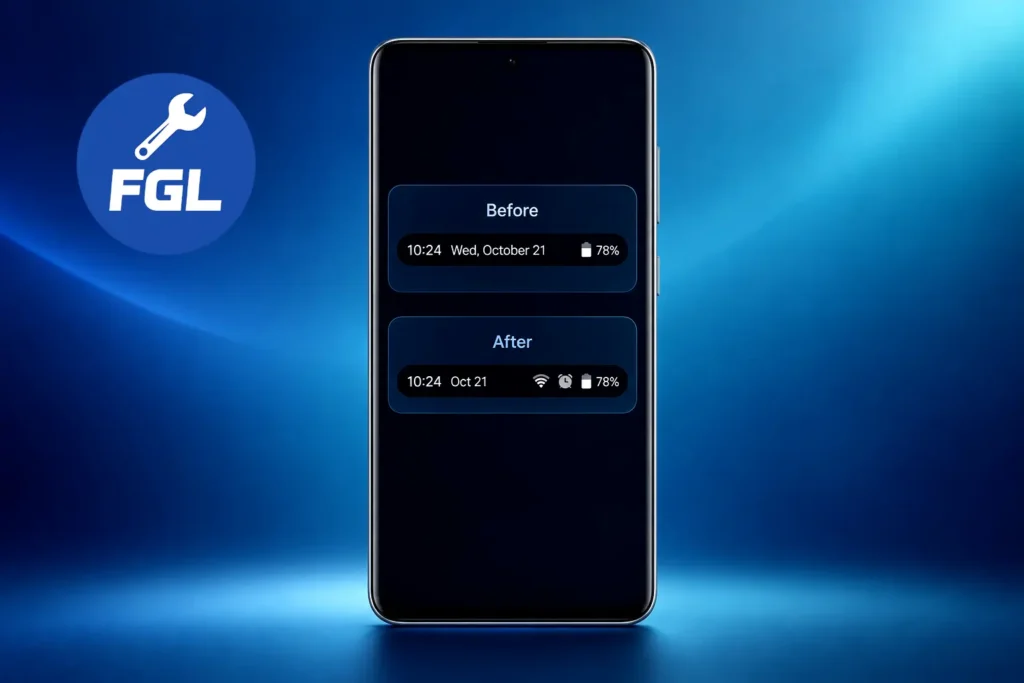
On October 16, 2026, Samsung’s Good Lock support team replied to a user whose Wi-Fi and alarm icons had disappeared after the update. Its reply says that, because status bar space is limited, some system icons may not appear depending on the date display type you choose. Samsung’s advice is to pick another date display type if you want to see all system icons. It does not give menu steps.
Separately, Android Authority reported on October 19, 2026 that a Galaxy user had described QuickStar icon toggles affecting the wrong icons, and that Samsung’s Good Lock support team had responded. That is covered in Cause 2 below.
Cause 1: Your Date Style Is Taking Up Room
Samsung describes this as a space limit, not a bug. A long date style can crowd out other indicators, such as the Wi-Fi and alarm icons, so they do not show.
Android Authority’s summary says that switching to a shorter date format should restore them. Samsung’s own wording is only “choose another date display type,” so if one style does not work, try another.
Cause 2: A QuickStar Bug, as Reported
Android Authority’s report describes a user whose icons responded to the wrong QuickStar controls. In the user’s video, turning on Do Not Disturb brought a missing Wi-Fi icon back, while turning off the network indicator made it disappear.
According to that report, Samsung’s Good Lock support team said developers had identified an issue with how system icons behave when they are toggled, and that improvements are planned. The same report says the fix needs changes to the underlying platform software and further review, and that Samsung gave no timeline.
The original Samsung thread could not be checked directly, so these details rest on Android Authority’s account of Samsung’s reply. The bug is described in connection with QuickStar, the Good Lock module that lets you choose which indicators appear.
Which One Do You Have?
Samsung’s replies do not give a way to tell the two apart, and the reports overlap. The user in the date-space thread also saw an icon come back after switching off the battery percentage. So change the date style first. If icons still react to the wrong toggle after that, you may be seeing the bug Android Authority describes.
If your connection itself seems to drop, rather than just an icon going missing, that is a different problem. Our guide on Android Wi-Fi and mobile data drops covers fixes for that.
Step-by-Step: What You Can Try
1. Check the connection
Swipe down and check the Wi-Fi tile in the quick panel. If it shows that you are connected to your network, Wi-Fi is on and joined, even if the icon is missing from the status bar. To confirm the internet works over Wi-Fi, turn mobile data off for a moment and load a page.
2. Try a different date style
This is the step Samsung’s reply points to, described in the Quick Fix above. If the first style does not help, try another one.
3. General troubleshooting suggestions
Samsung has not named any of these as fixes for this issue. They are common steps that cost little to try:
- Restart the phone.
- Check for app updates. Open the Galaxy Store and look for Good Lock and QuickStar updates.
- Check for a software update in your phone’s Settings.
- Leave the confusing toggles alone for now. If switching one icon changes another, set your options the way you want them and avoid changing them again.
Samsung has not said that any specific app or system update will resolve the toggle bug. Skip the factory reset. Nothing in the reports suggests it would help.
What Is Still Unclear
- Samsung has not announced a fix or release date for the toggle bug, and no report says one has been released.
- It is not clear how many users are affected. The reports only say the problems began after updating to One UI 9.
- The toggle-bug details come from Android Authority’s English report of a post on Samsung’s Korean community forum.
Frequently Asked Questions
Do I need Good Lock to see this problem?
Both reports involve QuickStar, a Good Lock module. Samsung has not said whether phones without it are affected, so there is no confirmed answer yet.
Should I uninstall QuickStar to test it?
Samsung has not recommended uninstalling QuickStar as a fix for this issue, so there is no need to remove it just to test.
Does this point to a hardware or security problem?
The reports describe only how icons are displayed. Nothing in them points to hardware damage or a security issue.

- Google Pixel Battery Drain and Overheating: Causes and Fixes - October 25, 2026
- Google Pixel Video Bug: Subject Missing in Saved Recordings - October 25, 2026
- iPhone 18 Pro Earpiece and Speaker Crackling or Popping: Is It Fixable? - October 25, 2026