
Published: October 19, 2026
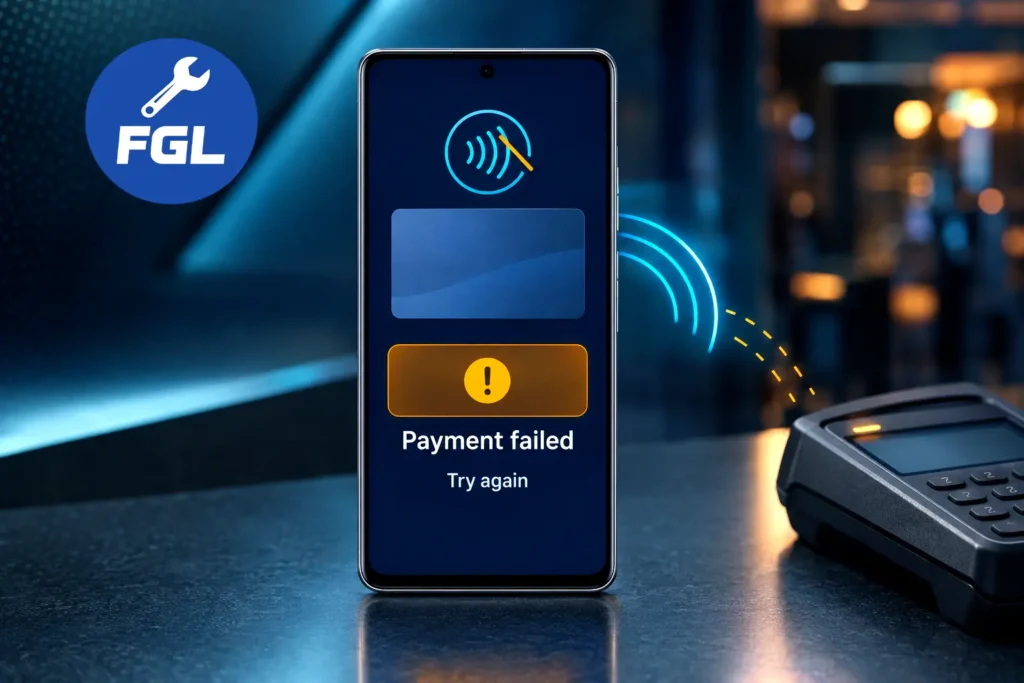
Google Pixel NFC tap to pay is failing for some users. When you bring the phone close to the reader, the scan does not go through and the payment fails. Owners of the Pixel 8, 9, 10 and 11 series have reported the problem since late September 2026, and Google has not shared a cause or a fix yet.
Some users say restarting the phone brings payments back for a while, and it is the workaround reported most often. This guide shows how to restart, then covers simple checks for your settings and a few things to try if the problem continues.
What Pixel Owners Are Reporting
Android Authority covered the issue on September 28, 2026. It said contactless payments and passes work only now and then. 9to5Google followed on September 30 and pointed to many Reddit posts from the previous two weeks. These reports do not show how many owners are affected, so not every Pixel phone will have the problem.
Users say payments fail inside Google Wallet, and some say at transit gates too, where the app does not need to be open. Other NFC features keep working for some people, but payments do not.
One Pixel 11 Pro XL owner told Android Authority that their phone runs Android 17. That is one person’s setup and does not prove Android 17 is the cause. No cause has been confirmed. Android Authority said it had asked Google for comment, and 9to5Google reported that Google had not responded when it published.
Quick Workaround: Restart the Phone
On Pixel 6 and later, including the Pixel Fold, press and hold the power button and volume up button together for a few seconds, then tap Restart. This is Google’s own Pixel Help method. Holding the power button alone may not open the power menu, unless you have changed that setting. Once the phone is back on, try the reader again.
The problem can return later, so treat a restart as a temporary workaround, not a fix.
Start With Google’s Official Checks
Google’s help page for tap to pay problems lists a few basic requirements. A missing setting can look just like a bug.
Confirm Google Wallet Is Ready
Open Google Wallet and tap your profile picture. If you see a message asking you to finish setup, tap it and follow the steps. If there is no message, Google says your card is ready to tap and pay.
Set Google Wallet as the Default Payment App
Open Settings, then Connected devices, then Connection preferences, then NFC. Make sure NFC is on, tap Contactless payments, and choose Google Wallet. Menu names can differ between Android versions, so look for the closest match on your phone.
Check Your Screen Lock
Contactless payments need a screen lock, and Google asks you to confirm it is you before paying. Wake and unlock the phone, then tap the reader. You do not need to open Wallet first. Wallet does not work with weaker lock types like Smart Unlock, so use a PIN, pattern or fingerprint.
Check Play Protect Certification
Google says the phone must be certified and meet its security requirements. If it does not, contactless payments will not work. To check, open the Play Store, tap your profile icon at the top right, then go to Settings and tap About. Your Play Protect certification status is shown there.
Install Pending Updates
Google advises keeping the Wallet app up to date, so update Google Wallet in the Play Store. Installing any waiting Android update is an extra step, and it means you get any fix as soon as it is released. Open Settings, then System, then Software updates. Menu names can differ between Android versions.
Hold the Phone Properly
Hold the back of the phone close to the reader and keep it there for a few extra seconds. If the blue check mark does not appear, try holding it a different way, because the NFC antenna may be near the top or middle of the phone. On a Pixel Fold or another foldable phone, Google’s Wallet Help says to fold the device first.
Extra Suggestions That Are Not From Google
These ideas come from news coverage and general troubleshooting, and Google does not list them as fixes for this problem.
Check Position and Accessories
9to5Google noted that the Pixel 11 has its NFC antenna placed slightly higher than other models, and PhoneArena described it as sitting near the top edge, above the camera bar. If you own a Pixel 11, hold the upper part of the back close to the reader and keep still for a moment. Owners of older Pixels have also reported problems, so antenna position has not been shown to be the cause. Use it as a positioning tip only.
A thick case, a metal plate, a magnetic ring, or a card tucked behind the phone can also weaken the short-range signal. Take them off for one test.
Be Careful With Clearing Storage
Android lets you clear an app’s cache or its storage. Clearing the cache removes temporary files, while clearing storage or data removes much more. Google warns that clearing all data from Google Wallet or Google Play services can cause your cards to be removed, and you would need to add them again. Google’s documentation does not say how clearing only the Wallet cache affects saved cards, so do not assume it is risk free. If you choose to try it, make sure you can re-add your cards, and avoid touching Google Play services data.
Narrowing Down the Problem
Try a different card saved in Wallet, and if you can, hold the phone to more than one reader. If one reader fails while others work, that reader may be the issue. If every attempt fails, the cause could still be your phone, Wallet, a card, or something else, so these tests alone cannot settle it. Write down the time, the place, your Pixel model and your software version. These notes can make a support conversation quicker.
When to Contact Google or Your Bank
If the checks above do not help, contact Pixel support. Your bank can also confirm that your card is active and allowed for contactless payments. Until payments are reliable again, keep a physical card or some cash on hand.
Frequently Asked Questions
Is it safe to keep using Google Wallet?
The reports describe payments that fail to go through. The coverage we reviewed does not mention stolen card details or unexpected charges, but that does not prove there is no risk. Wallet requires a screen lock and a certified phone for contactless payments, so keep both in order, and check your bank statements as you normally would.
Are other Android phones affected?
The coverage so far centers on Pixel phones. If you use another brand and see similar symptoms, check that maker’s support pages.

- Google Pixel Battery Drain and Overheating: Causes and Fixes - October 25, 2026
- Google Pixel Video Bug: Subject Missing in Saved Recordings - October 25, 2026
- iPhone 18 Pro Earpiece and Speaker Crackling or Popping: Is It Fixable? - October 25, 2026