
Published: September 11, 2026
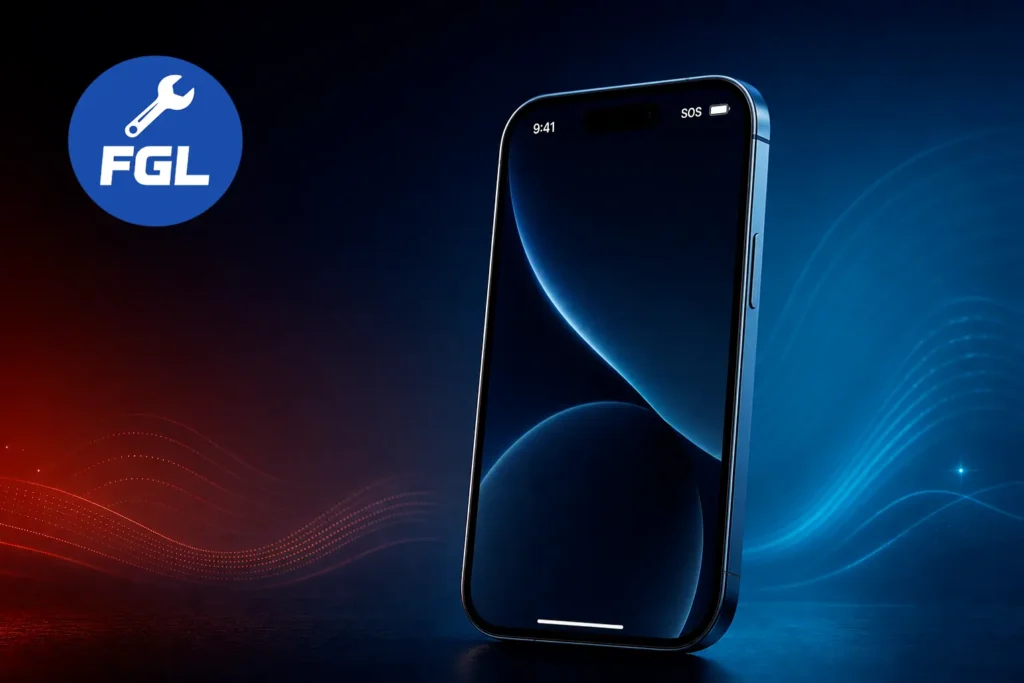
If SOS appears where the signal bars normally are on your iPhone, it means the iPhone isn’t able to connect to the normal cellular network. Until the phone connects to the network again, you can’t make calls, send messages, or use mobile data. Emergency calls may still work.
It’s the same as seeing “Emergency calls only” on an Android phone when the normal connection is lost. As soon as the phone finds the network, it connects again and the service is restored.
Before you simply wait for the network to return, check your SIM or eSIM and make sure there isn’t a problem with your network settings. SOS itself doesn’t mean there is a hardware or software problem. It is simply a sign that the iPhone isn’t connected to its normal cellular network.
Quick Fix
Start with this when the network is available where you are, but your iPhone is still showing SOS. A quick network refresh can reconnect the phone without changing any other settings.
- Open Control Center by swiping down from the top-right corner, or up from the bottom of the screen on older iPhone models.
- Tap the Airplane Mode icon.
- Wait 15 seconds.
- Tap it again to turn Airplane Mode off.
This gives the iPhone a chance to reconnect to the cellular network. Wait about 30 seconds after turning Airplane Mode off. As soon as the phone finds the network, it connects again and the service is restored.
When the network itself is down, changing settings on your iPhone won’t fix it. Check whether other people using the same carrier have service or not. If their service is working normally but your iPhone is still showing SOS, try the connection fixes above.
iPhone can show SOS for different reasons:
- Weak or unavailable cellular coverage, especially inside apartments or other buildings with thick concrete walls, basements, elevators, or remote areas.
- A temporary outage or service problem with your carrier.
- A SIM or eSIM that isn’t active or isn’t connecting properly.
- An account issue, such as an inactive account or a device blocked by the carrier.
- Outdated carrier settings or iOS software that can affect cellular connectivity.
- In rare cases, physical damage to the iPhone after a drop or liquid exposure.
Check Which SIM or eSIM Line Is Actually On
If you use Dual SIM or a second eSIM, check that the line you want to use for calls and data is actually turned on. Go to Settings > Cellular, tap the line, and make sure Turn On This Line is switched on.
If you use two lines and only need one active, that’s fine. The line you expect to use just needs to be turned on.
Switch From 5G Auto to LTE for a Moment
If SOS shows up mainly in areas with weak or unstable 5G coverage, you can temporarily switch from 5G Auto to LTE and see whether the connection becomes more stable. Go to Settings > Cellular > Cellular Data Options > Voice & Data and select LTE.
You can switch back to 5G Auto once you reach an area with stronger coverage.
Turn Network Selection Back to Automatic
If Network Selection is available on your iPhone, go to Settings > Cellular > Network Selection and check that Automatic is turned on.
If a network was selected manually before, your iPhone may still be trying to connect to that specific carrier even when it’s out of range. Switching back to Automatic lets the iPhone choose an available network again.
On some iPhones, especially with certain eSIM setups, the Network Selection option may not appear at all.
Update Your Carrier Settings
Carrier settings are small files that help your iPhone connect and work properly with your specific network. They are separate from iOS itself. Go to Settings > General > About and wait a few seconds. If a carrier update is available, you’ll see a prompt to install it. You can also learn more about carrier settings updates.
These updates can improve cellular connectivity and performance and may add support for features such as 5G or Wi-Fi Calling. It’s worth checking after a SIM swap, eSIM activation, or major iOS update.
Update Your iPhone’s Software
Go to Settings > General > Software Update and see if there’s a new iOS update available. If there is, download and install it. Apple also recommends updating your iPhone when you’re dealing with SOS, No Service, or Searching issues, as an iOS update may fix a problem affecting the cellular connection.
Reset Network Settings if Nothing Else Has Worked
Resetting your network settings can help when your iPhone stays on SOS even after trying the other connection fixes. Go to Settings > General > Transfer or Reset iPhone > Reset > Reset Network Settings.
This removes saved Wi-Fi passwords, Bluetooth connections, VPN settings, and other network preferences. It doesn’t delete your photos, messages, or apps. After the reset, you’ll need to reconnect to your Wi-Fi networks and set up any network settings again.
If you have an iPhone 18 Pro Max on AT&T and SOS won’t go away, this may be a confirmed carrier-specific issue. See iPhone 18 Pro Max stuck in SOS on AT&T for what Apple has said and what to do.
SOS Only Is Not the Same as Emergency SOS
SOS and Emergency SOS are two different things. When you activate Emergency SOS, your iPhone can call emergency services. Depending on your settings and region, it can also notify your emergency contacts.
Seeing just SOS or SOS only at the top of the screen is different. It means your iPhone isn’t connected to your normal cellular network, although emergency calls may still be available.
Frequently Asked Questions
How long does SOS only usually last?
There’s no fixed time. It depends on the issue. Once your iPhone reconnects to the normal cellular network, SOS will disappear.
Does SOS only drain the battery faster?
Yes, it can. When your iPhone keeps searching for a network, it may use more battery than usual. This should return to normal once the phone reconnects.

- Fix Google Pixel Screen Flickering & Green Line Issue (Step-by-Step Guide) - October 27, 2026
- Google Pixel Battery Drain and Overheating: Causes and Fixes - October 25, 2026
- Google Pixel Video Bug: Subject Missing in Saved Recordings - October 25, 2026