
Updated: September 20, 2026
Your smartphone is no longer just a device for making calls or sending messages. It has become a major part of your digital identity. Your banking apps, internet access, social media accounts, private messages, photos, work files, and other personal information are all connected to your phone.
That is why keeping your smartphone secure is more important than ever. If your phone is lost, stolen, or accidentally left behind and ends up in someone else’s hands, proper security settings can make it much harder for them to access your accounts and personal data.
Good security also helps protect your device and information from online attacks, suspicious apps, phishing attempts, and other common threats.
Secure Your Phone
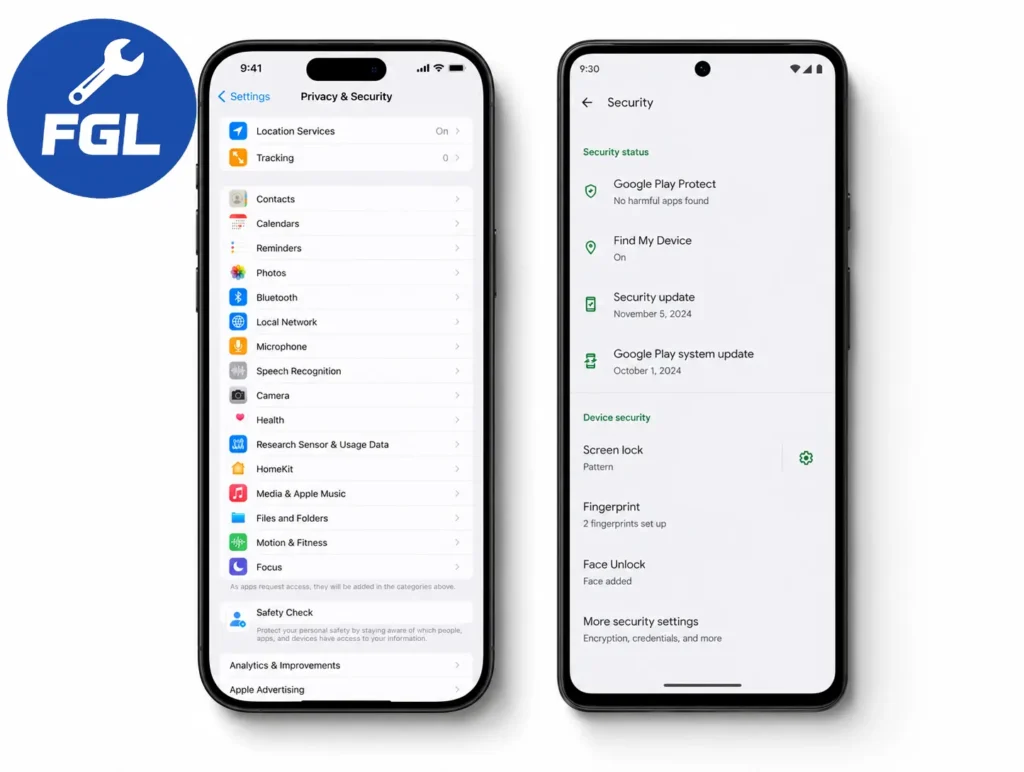
Before going through the detailed steps, start with these important security settings:
- Set a strong screen lock (PIN, password, or biometric)
- Install any pending system and app updates
- Turn on two-factor authentication for your main Google or Apple account
- Set your SIM card PIN
- Turn off auto-connect to open Wi-Fi networks
- Enable Find Hub (Android) or Find My (iPhone)
- Review which apps have access to your location, camera, and microphone
These steps cover some of the most important settings for securing your smartphone. Below, we’ll explain why each one matters and show you how to check or enable these security features step by step.
Use a Strong Screen Lock and Biometrics
Your screen lock is the first layer of protection if someone gets hold of your phone. Use a strong PIN or password instead of leaving your phone unlocked or using a simple pattern. Keep Auto-Lock turned on.
Android
Go to Settings → Security & privacy → Device unlock → Screen lock.
Choose PIN or Password, then follow the on-screen instructions.
After that, look for Fingerprint or Face unlock in your phone’s security settings. If your phone supports either feature, follow the on-screen instructions to set it up.
iPhone
Go to Settings → Face ID & Passcode or Touch ID & Passcode, depending on your iPhone model.
Tap Turn Passcode On and follow the instructions to create your passcode. You can also set up Face ID or Touch ID from the same section.
Keep Your Phone and Apps Updated
Keeping your phone and apps updated helps protect your device from known security issues. Install pending system and app updates instead of continuing to use outdated versions.
Android: Open Google Play Store → profile picture → Manage apps & device → Updates available to update your apps. For system updates, go to Settings → System → Software update.
iPhone: Open App Store → profile picture → App Updates → Update All to update your apps. Go to Settings → General → Software Update → Download and Install to update iOS.
Install Apps Only From Official Stores
Apps installed from outside official app stores can carry security risks, especially modified or cracked versions from untrusted sources.
- Stick to the Google Play Store or Apple App Store
- Check an app’s reviews, download count, and developer name before installing unfamiliar apps
Review App Permissions and Privacy Settings
Apps should only have access to the information and features they actually need.
Location access
Android: Settings → Location → App Permissions → set apps that don’t need precise location to Approximate
iPhone: Settings → Privacy & Security → Location Services → choose an app and turn off Precise Location when it isn’t needed.
Also review camera and microphone access and turn them off for apps that don’t need them.
Secure Your Main Google or Apple Account
Your main Google or Apple account is connected to important services such as backups, saved passwords, payment methods, and device location features. Keeping this account secure helps protect the information and services connected to your phone.
- Use a strong, unique password you don’t reuse anywhere else
- Turn on two-factor authentication or use a passkey if available
- Check your account’s security page for devices you no longer recognize and sign them out
- Keep your account recovery details, such as your phone number and backup email, up to date
Be Careful on Public Wi-Fi
Open Wi-Fi networks in cafes, airports, and hotels aren’t inherently unsafe, but they can carry more risk than your home network.
- Avoid logging into banking apps or making payments over public Wi-Fi
- Turn off auto-connect to open networks in your phone settings
- Forget public Wi-Fi networks after you’re done using them
Protect Your SIM and Mobile Number
Your SIM card and phone number are linked to many accounts, especially those that use SMS for verification. A few simple steps can help protect them.
- Set a SIM PIN to prevent someone from using your physical SIM in another device
- Ask your carrier about adding an account PIN, password, or extra verification to help prevent unauthorized number transfers
- Where possible, use an authenticator app or passkey instead of SMS-based two-factor authentication
If your phone suddenly loses mobile service and you also notice unexpected login alerts or password-reset messages, contact your carrier and check your accounts.
Turn On Theft Protection
Android and iPhone have built-in features that can help protect your phone if it is stolen.
Android: Go to Settings → Google → All services → Theft protection and turn on the available features. These can include Theft Detection Lock, Offline Device Lock, Remote Lock, and Factory Reset Protection, depending on your phone and Android version.
iPhone: Go to Settings → Face ID & Passcode → Stolen Device Protection and turn it on.
Enable Find Hub or Find My
Google’s device-finding service, previously called Find My Device, is now known as Find Hub. It can help you locate your phone, make it ring, lock it remotely, or erase it if you can’t recover it.
On iPhone, Find My provides similar features for locating and protecting a lost or stolen device.
Protect What Shows on Your Lock Screen
Notifications can show private information on your lock screen, such as message previews, email subjects, or verification codes.
Android: Go to Settings → Notifications → Notifications on lock screen and choose Don’t show notifications or Show sensitive content only when unlocked, depending on your phone.
iPhone: Go to Settings → Notifications → Show Previews and select When Unlocked or Never.
Back Up Your Important Data
A backup won’t stop your phone from being lost or stolen, but it can help you recover important photos, contacts, and other data.
Android: Go to Settings → Google → Backup and make sure backup is turned on.
iPhone: Go to Settings → [your name] → iCloud → iCloud Backup and turn on Back Up This iPhone.
Hide or Lock Sensitive Apps
Some Android phones let you add an extra layer of protection to individual apps.
Android: Go to Settings → Security & privacy → App encryption, select the apps you want to protect, and set an App encryption password.

- Google Pixel Battery Drain and Overheating: Causes and Fixes - October 25, 2026
- Google Pixel Video Bug: Subject Missing in Saved Recordings - October 25, 2026
- iPhone 18 Pro Earpiece and Speaker Crackling or Popping: Is It Fixable? - October 25, 2026