
Last Updated: October 16, 2026
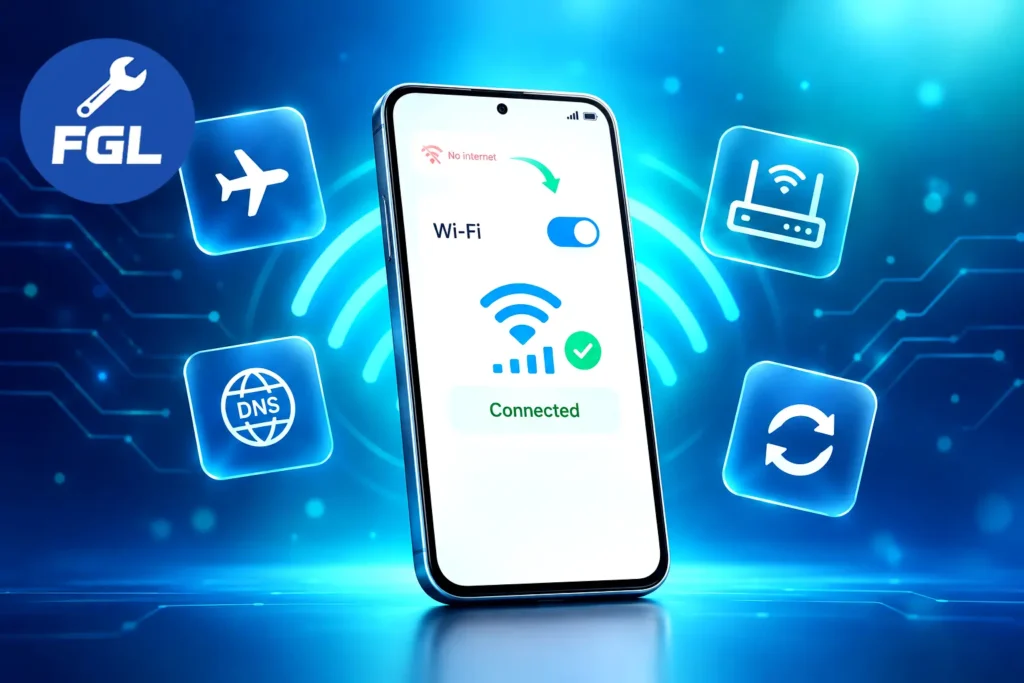
A phone that shows full Wi-Fi bars while every page refuses to load is a common and confusing problem. The cause is rarely the phone alone. A saved network entry can go stale, a router can run out of addresses, a VPN can block traffic, or a security setting can clash with an older device. The seven fixes below run from the quickest to the most thorough, so you can stop the moment the connection returns and avoid changing more than you need to.
Work Out Whether the Phone or the Network Is Failing
Three quick tests point you to the right fix. Join a different network, such as a friend’s Wi-Fi or a hotspot from a second phone. Connect a laptop or another phone to your usual network. Then switch Wi-Fi off and load a page over mobile data.
| What you see | Likely cause | Start with |
|---|---|---|
| Phone fails on every network | Phone settings or software | Fixes 1, 2, 4 and 5 |
| Other devices fail on your network too | Router or internet provider | Fixes 3 and 6 |
| Only your phone fails on your network | Phone and router disagree on a setting | Fixes 2, 6 and 7 |
| Connected, but pages will not load | DNS or a blocking app | Fixes 4 and 5 |
If the trouble began right after a system update, read this guide to Android Wi-Fi drops after the October 2026 update. It explains what Google’s security bulletin does and does not say, which helps you separate a genuine update problem from an ordinary settings issue.
Menu names differ by brand and software version. When an option is missing, type its name into the search bar at the top of Settings.
1. Refresh the Connection
A Wi-Fi radio can hang after sleep, a long call, or a walk between rooms. A short reset often clears it.
Toggle Airplane Mode
Open Control Center on iPhone or Quick Settings on Android, turn Airplane Mode on, and wait about fifteen seconds. Turn it off and let the phone rejoin on its own.
Restart the Phone
A normal restart clears temporary network states that a toggle leaves behind. Power the phone off completely, wait a moment, and switch it back on before testing the connection again.
2. Forget the Network and Rejoin
A saved entry can hold outdated security or address details, which is why a correct password sometimes still fails. Keep the password nearby, because you will need to type it again.
- iPhone: Settings, then Wi-Fi, tap the info icon beside your network, choose Forget This Network, then join again.
- Android: Settings, then Network & internet, then Internet, select the saved network, tap Forget, then join again.
3. Power-Cycle the Router and Modem
Unplug the router for at least thirty seconds, plug it back in, and give it a few minutes to finish starting. When the modem is a separate box, restart it first, then the router. Wait until the indicator lights settle before you test your phone.
If the link works but the signal is thin in some rooms, our guide to weak Wi-Fi signal is a useful companion read.
4. Change the DNS Settings
DNS turns website names into addresses. When your provider’s DNS server is slow or unreachable, the phone reports a connection but pages stall, often with a message such as “Connected, no internet.”
Android: Use Private DNS
Open Settings, then Network & internet, then Private DNS. Choose the hostname option and enter dns.google or one.one.one.one. Return to Automatic if nothing improves.
iPhone: Enter DNS Servers by Hand
On the same info screen from Fix 2, choose Configure DNS. Select Manual, remove the existing entries, add 8.8.8.8 and 1.1.1.1, then save. Choosing Automatic restores the original setup.
A different DNS provider also changes who handles your lookups, so keep the one you trust and switch back when the test is over.
5. Remove Software Interference
Pause VPNs, Ad Blockers and Security Apps
Any tool that filters traffic can interrupt a connection. Turn one off at a time, retest, and keep the culprit disabled or reconfigure it.
Switch Off Wi-Fi Assist and Adaptive Connectivity
Wi-Fi Assist on iPhone can switch to cellular data when Wi-Fi connectivity is poor. On Android, automatic switching behavior varies by device and software version. On iPhone, open Settings, then Cellular (or Mobile Data), and scroll down to Wi-Fi Assist. On Pixel phones, look under Network & internet for Adaptive connectivity; depending on the software version, it may include an option to switch to mobile data when Wi-Fi is poor. Other Android brands use different names for similar options.
Rule Out Bluetooth and Band Crowding
Bluetooth devices and many routers share the 2.4 GHz band, so busy Bluetooth traffic can cut into Wi-Fi performance. Turn Bluetooth off for a test. If the connection improves, join the 5 GHz or 6 GHz band when your router offers one.
6. Check Router Compatibility Settings
Look at the Address Pool
Your router hands each device a temporary address from a fixed range. When the range is full, a new device cannot finish joining. Disconnect a device you rarely use, such as an old tablet, and try again. If that works, open the router’s DHCP settings and widen the range.
Allow WPA2/WPA3 Mixed Mode
Some older phones struggle with routers set to WPA3 only. Choosing a WPA2/WPA3 Transitional or mixed option keeps newer devices protected while letting older ones connect. The Wi-Fi Alliance maintains the WPA3 certification program if you want the technical background.
Review Private Address and MAC Settings
Phones now present a randomized hardware address to each network for privacy. A router that filters by address, or reserves addresses for known devices, can reject that identity.
- iPhone: Return to that info screen. On iOS 18 and later, tap Private Wi-Fi Address and pick Off, Fixed or Rotating. Earlier versions use a simple on-or-off switch. Apple’s guide also recommends installing the latest software update when a device cannot join a network.
- Android: Android 10 and later randomize by default. Open the network’s settings, find Privacy, and test Use device MAC.
Treat either change as a test. Randomization protects you on public networks, so restore it for those.
7. Reset Network Settings
This is the final software option. It erases saved Wi-Fi networks and passwords, cellular settings and VPN settings, then rebuilds them with defaults. Photos, apps and files stay untouched. Note any custom carrier settings before you begin.
- iPhone: Settings, then General, then Transfer or Reset iPhone, then Reset, then Reset Network Settings. Enter your passcode when asked.
- Android: Settings, then System, then Reset options, then Reset Wi-Fi, mobile & Bluetooth. Some versions split this into separate mobile and Wi-Fi options, so run both. Bluetooth pairings are cleared as well.
Reconnect to your network afterward and use it for a while before deciding whether the fix held.
Frequently Asked Questions
Why does my phone show Wi-Fi at a hotel or café but nothing loads?
Public networks often require a sign-in page before they allow traffic. Phones usually display it automatically. When it does not appear, open the browser and visit an address that begins with http rather than https, which often brings up the login screen.
Can a Wi-Fi extender or mesh system cause drops?
Yes. A phone sometimes holds on to a distant access point after you move closer to another one. Place an extender where the router’s signal is still strong, not inside the dead zone it is meant to cover.
Why is the connection slow when every bar is full?
The bars show signal strength between phone and router, not the speed of your internet plan. Speed depends on the plan itself, how many devices are streaming, and how busy the router is.
How do I check for an internet provider outage?
Look at the provider’s status page or app, or contact their support line. Many routers also have an internet light that goes dark or changes color when the link fails, and the manual explains what your model’s lights mean. Once an outage is confirmed, only the provider can restore service.
When should I contact Apple or my phone maker?
Reach out once all seven fixes have failed. Have the phone model, software version and a short note about when the problem appears ready, because those details speed up diagnosis. A software fault or a hardware problem inside the device is something only the manufacturer’s support or a repair center can confirm.

- Google Pixel Battery Drain and Overheating: Causes and Fixes - October 25, 2026
- Google Pixel Video Bug: Subject Missing in Saved Recordings - October 25, 2026
- iPhone 18 Pro Earpiece and Speaker Crackling or Popping: Is It Fixable? - October 25, 2026