
Published: July 8, 2026
If your WhatsApp Web QR code isn’t scanning, the QR code itself usually isn’t the cause. In most cases, the problem appears when you’re linking WhatsApp Web on a device for the first time. Missing a required permission, such as camera access, or skipping one of the setup steps can prevent your phone from scanning the QR code successfully.
I experienced the same issue while setting up WhatsApp Web on a new device. After checking a few permissions and completing the remaining setup steps, the QR code scanned normally and the device linked without any further issues.
I’ve organized the fixes below in the order I’d recommend checking them. Starting with the most common causes can save you time and make it easier to identify what’s preventing the QR code from scanning.
Why Isn’t WhatsApp Web Scanning the QR Code?
Before trying the fixes, it’s helpful to understand what might be causing the problem. Identifying the likely cause makes it easier to choose the right solution.
- Internet issues – Either your phone or your computer has a weak or unstable connection, so the QR code never fully loads or refreshes
- Browser cache buildup – Old, cached data can stop the WhatsApp Web page from rendering the QR code correctly.
- Camera problems – A blurry lens, low light, or holding the phone too close or too far can stop your camera from reading the code.
- Outdated app or browser– Running an old version of WhatsApp or your browser can cause compatibility glitches.
- Wrong phone date and time– An incorrect clock can quietly break the secure handshake between your phone and WhatsApp’s servers
- Once you know the likely cause, fixing it becomes much easier. Let’s go through each solution step by step
Once you have a better idea of what’s causing the problem, the troubleshooting process becomes much more straightforward. Start with the first fix below and work your way through the list until you’ve ruled out the most likely causes.
Wrong phone date and time – An incorrect clock can quietly break the secure handshake between your phone and WhatsApp’s servers. It’s the same issue that can cause WhatsApp backup restore problems too.
How to Fix WhatsApp Web QR Code Not Scanning Issue
1. Allow the Required Permissions
When linking WhatsApp Web for the first time, WhatsApp requires permission to use your phone’s camera. If camera access has been denied, the app won’t be able to scan the QR code, preventing your device from linking successfully.
Open Settings on your phone, go to Apps, WhatsApp, Permissions, and allow Camera access if it’s turned off. Once the permission is enabled, return to WhatsApp, Linked Devices and scan the QR code again.
2. Scan the Code the Right Way
One of the most common mistakes is trying to scan the QR code with your phone’s default camera app. I made the same mistake the first time I used WhatsApp Web because I assumed it worked like any other QR code. It doesn’t.
WhatsApp Web only accepts scans made through the QR scanner built into the WhatsApp app. If you use your phone’s camera instead, the code may be detected, but it won’t link your device to your WhatsApp account.
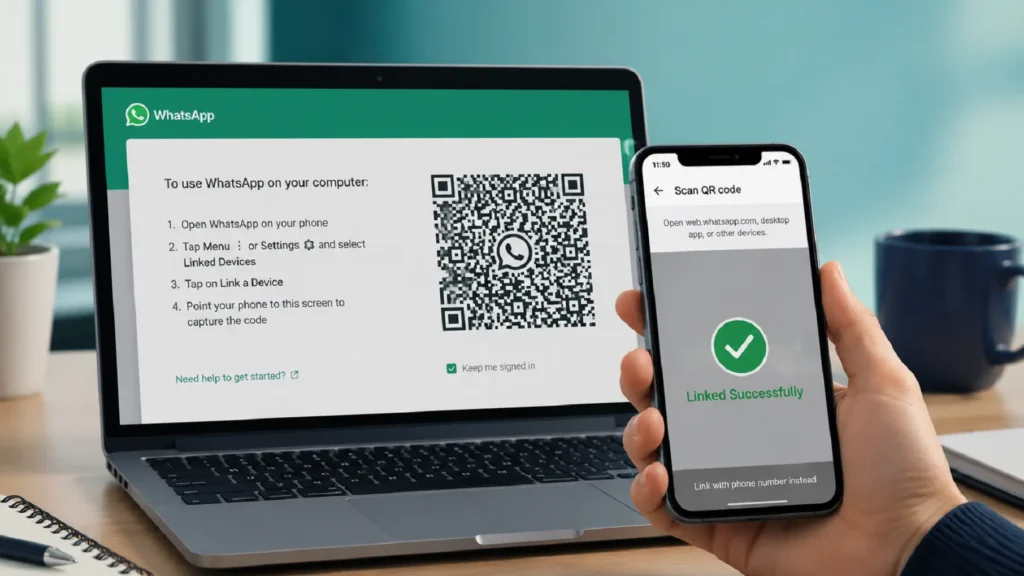
To scan it correctly
- Open WhatsApp on your phone.
- Tap the three-dot menu (Android) or Settings (iPhone).
- Select Linked Devices
- Tap Link a Device
- Scan the QR code displayed on your computer screen.
If you’ve been using your phone’s camera until now, switch to WhatsApp’s built-in scanner before moving on to the next fix.
3. Check Your Internet Connection
A stable internet connection is required for your phone and computer to communicate while linking WhatsApp Web. If either device has a weak, slow, or unstable connection, the QR code may fail to scan or the linking process may not complete successfully.
Before trying anything else, make sure both your phone and computer are connected to the internet. If you’re using Wi-Fi, check that the connection is stable. If the signal is weak, reconnect to the network or switch to mobile data temporarily to see if that resolves the issue.
Once both devices have a reliable internet connection, scan the QR code again. Even a small connection issue can interrupt the pairing process.
4. Clear Browser Cache and Cookies
If the QR code still isn’t scanning, your browser’s cached files or cookies could be part of the problem. Over time, browsers store temporary data to load websites faster, but outdated or corrupted cache files can sometimes prevent WhatsApp Web from loading or refreshing the QR code correctly.
Clearing your browser’s cache and cookies forces WhatsApp Web to load a fresh session, which often resolves issues caused by old browsing data.
After clearing the cache and cookies, reopen WhatsApp Web, wait for a new QR code to appear, and try linking your device again.
5. Clean Your Phone’s Camera Lens
Your phone’s camera needs a clear view of the QR code to scan it successfully. Dust, fingerprints, or other marks on the lens can make it difficult to read the code, causing the scan to fail.
Gently wipe the camera lens with a soft cloth or tissue, then try scanning the QR code again. A clean lens helps your phone read the QR code more accurately.
6. Refresh the WhatsApp Web Page
If the QR code has been on your screen for a while, refresh the WhatsApp Web page to generate a new one. Sometimes the code expires or doesn’t load properly, which can prevent your phone from recognizing it.
After refreshing the page, wait for the new QR code to appear, then scan it again using Linked Devices in the WhatsApp app.
7. Update WhatsApp and Your Browser
If you’re using an older version of WhatsApp or your browser, update it to the latest version. Older releases can sometimes cause compatibility issues with WhatsApp Web.
Once the update is complete, reopen WhatsApp Web and scan the QR code again.
8. Restart Your Phone and Computer
If the QR code still isn’t scanning, restart both your phone and computer. A simple restart can clear temporary glitches, refresh background processes, and resolve connection issues that may be preventing WhatsApp Web from linking properly.
Once both devices have restarted, open WhatsApp Web again and scan the QR code using Linked Devices in the WhatsApp app.
The steps covered in this guide resolve the QR code scanning issue in most cases. If you need additional assistance or run into a different problem while linking your device, you can always visit the WhatsApp Help Center for official troubleshooting and support.
FAQs
Does WhatsApp Web have a QR code time limit?
Yes. The QR code displayed on WhatsApp Web expires after a short time for security reasons. If it stays on the screen for too long, simply refresh the page to generate a new code before scanning it.
Can I use WhatsApp Web without scanning a QR code?
No. The first time you link a browser to your WhatsApp account, scanning the QR code is required to verify the connection. Once the device is linked, you won’t need to scan the code again unless you sign out or remove the linked device.
How many devices can I link to WhatsApp Web?
WhatsApp allows you to link up to four additional devices to the same account. You can manage or remove linked devices anytime from WhatsApp, Linked Devices.
Why does WhatsApp Web ask me to scan the QR code again?
This usually happens if you’ve signed out of WhatsApp Web, cleared your browser data, or your previous session has expired. Scanning the new QR code links the browser again.

- Google Pixel Battery Drain and Overheating: Causes and Fixes - October 25, 2026
- Google Pixel Video Bug: Subject Missing in Saved Recordings - October 25, 2026
- iPhone 18 Pro Earpiece and Speaker Crackling or Popping: Is It Fixable? - October 25, 2026