
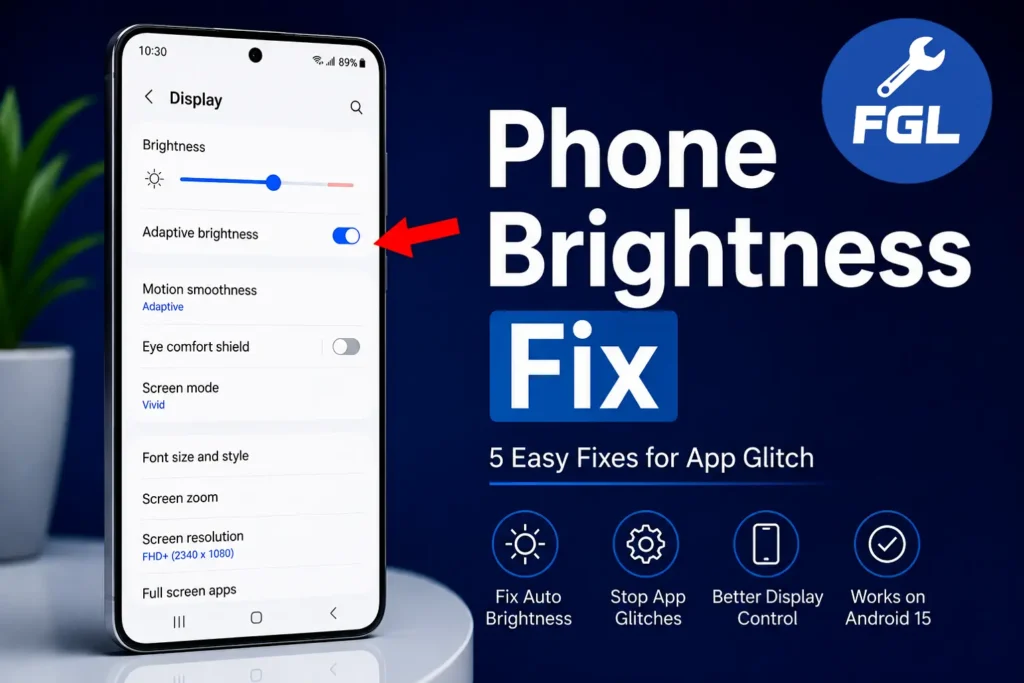
Published: June 29, 2026 | Updated: October 2, 2026
Does your phone brightness change automatically while you are using it or scrolling? The brightness suddenly becomes low, you increase it manually, but the next time it becomes dim again. To fix this issue, you do not need to go into any long settings. The first thing to try is turning off Adaptive Brightness. If the screen still dims afterwards, the checks further down cover the other common causes.
How to Turn Off Auto Phone Brightness
The steps can be slightly different depending on your phone model, but most Android devices follow a similar process.
- Open the Settings app on your phone.
- Go to Display or Display & Brightness settings.
- Find the option called Adaptive Brightness, Auto Brightness, or Automatic Brightness.
- Turn this option Off.
- Now adjust the brightness manually according to your preference.
Once it is off, the phone no longer adjusts the brightness to the light around you. If the brightness still changes, see the checks below.
What Is Adaptive Brightness and How Does Auto Brightness Work?
Adaptive Brightness uses your phone’s light-sensing system to adjust the screen brightness to your surroundings. Google’s Pixel support guide for display brightness says Pixel phones also learn your preferences over time when you change the brightness yourself, which can be one reason a manual setting does not stay where you put it.
One evening, I was going for a walk when I received a missed call. The sunlight had already faded, and it was starting to get dark. When I took my phone out of my pocket, the screen brightness was too low and I could not see it properly. I opened the Adaptive Brightness setting and turned it off. After that, I could control the brightness manually.
Turn off auto brightness depending on the phone model
Settings can vary by phone model and software version. Here are the paths for some common Android phones.
Android (common path): Settings → Display → Adaptive Brightness → Turn Off
Samsung Galaxy: Settings → Display → Adaptive brightness → Turn Off. You can also swipe down to open the Quick panel, touch and hold the Brightness slider, and turn off Adaptive brightness.
Google Pixel: Settings → Display & touch → Adaptive brightness → Turn Off
OnePlus: Settings → Display & Brightness → Auto brightness → Turn Off
Xiaomi / Redmi / POCO: Settings → Display → Brightness Level → Automatic Brightness → Turn Off. On newer versions: Settings → Display & brightness → Automatic brightness → Turn Off
What to Check if the Brightness Still Changes
If Adaptive Brightness is already off and the screen still dims, one of these may be the cause:
- Heat: some phones lower the brightness to protect themselves when they get too hot or are used heavily. Samsung lists this in its official support guide for automatic brightness. Let the phone cool down and check again.
- Battery Saver or power saving mode: on some phones this lowers the screen brightness, and Samsung says brightness can also drop when the battery is very low. Turn power saving off, or charge the phone.
- Extra Dim: on phones that have this feature, it can make the screen darker than the normal minimum brightness. If it is turned on, turn it off and check whether the screen looks normal again. It is usually found under Accessibility settings, though the location varies by phone.
- Blocked light sensor: the sensor is usually near the top of the screen. Dirt, a case, or a screen protector covering the sensor can affect how some phones detect the surrounding light. Clean the area or try without the protector.
- Screen dark during a call: the screen going dark when the phone is near your ear is normal. It is handled by the proximity sensor, which is separate from Adaptive Brightness. If it happens when the phone is not near your face, clean the top of the screen and check that nothing covers the sensor.
- Screen timeout: if the screen only dims after you stop using the phone for a while, that is usually the screen timeout, not automatic brightness. You can lengthen it in Display settings.
If none of these apply, restart the phone and install any pending system update.
Advantages of Adaptive Brightness
Adaptive Brightness saves you from changing the brightness again and again as the light around you changes. It can also help save battery, because a dimmer screen uses less power.
If you prefer to control the brightness yourself, or the automatic adjustment is not working as expected, you can leave it off and turn it back on from the same menu whenever you want.

- Google Pixel Battery Drain and Overheating: Causes and Fixes - October 25, 2026
- Google Pixel Video Bug: Subject Missing in Saved Recordings - October 25, 2026
- iPhone 18 Pro Earpiece and Speaker Crackling or Popping: Is It Fixable? - October 25, 2026