
Published: July 19, 2026
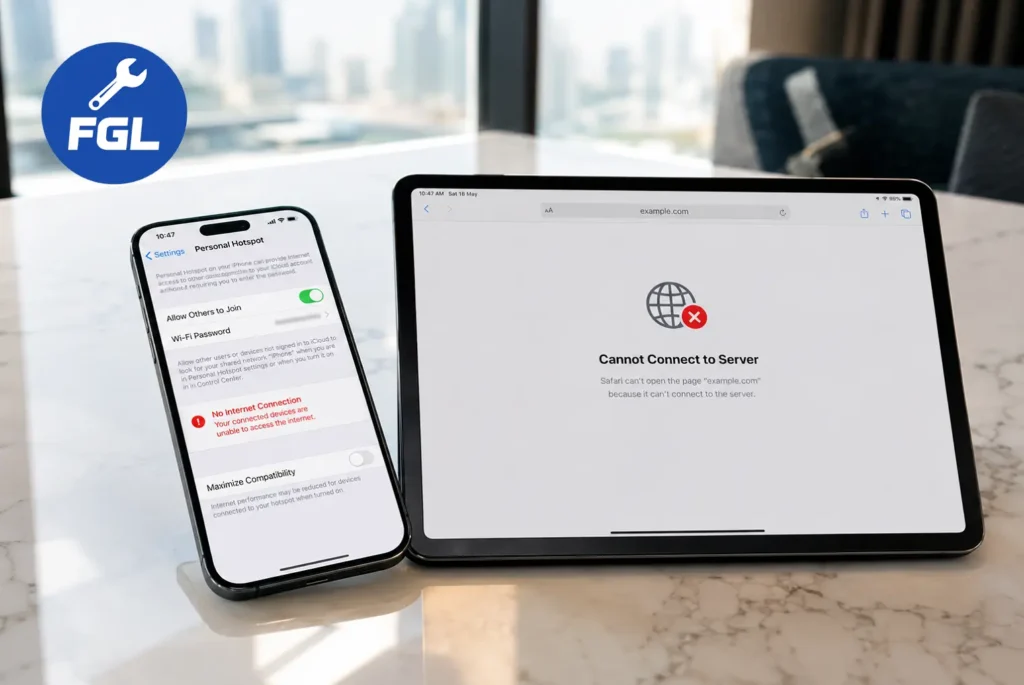
Your travel eSIM is working perfectly. Google Maps works, your apps open smoothly, and websites load normally. But the moment you try to share your hotspot with your laptop or tablet, the connection stops working.
eSIM hotspot depends on a few basic settings. These include the active mobile data line, data roaming, APN settings, and whether your eSIM plan supports hotspot (tethering).
Let’s go through six fixes and two extra tips that can help you get your hotspot working again on both iPhone and Android.
Find the Problem, Then Fix It
| Symptom | Likely Cause |
|---|---|
| Hotspot toggle is greyed out or missing | Your travel eSIM isn’t selected for mobile data |
| Hotspot connects but shows “no internet” | Data roaming is off, or the APN settings are incorrect |
| Hotspot worked yesterday, not today | Your plan has expired, you’ve used all your data, or your carrier has deactivated the eSIM |
| Hotspot stopped after crossing a border | Your phone hasn’t connected to the new local network yet |
| Hotspot option disappeared entirely | Your eSIM plan may not support hotspot (tethering) |
Why Your eSIM Hotspot Isn’t Working
A travel eSIM can connect to the internet while hotspot still refuses to work because both features don’t rely on exactly the same settings.
For hotspot to work, your phone needs to use the travel eSIM as the active mobile data line. Data roaming may also need to be enabled, especially when your provider uses partner networks. Some travel eSIMs configure APN settings automatically, while others require them to be entered manually. Your plan must also include hotspot (tethering), as some providers limit this feature on certain plans.
If you’ve recently crossed into another country, your phone may also need a short time to connect to a new partner network before hotspot starts working normally.
Apple also explains that on Dual SIM iPhones, Cellular Data and Data Roaming are managed separately for each SIM. If the wrong line is selected for mobile data, hotspot may not use your travel eSIM as expected.[1]
1. Select Your eSIM as the Cellular Data Line
If both your home SIM and eSIM are active, select your eSIM for mobile data so your phone uses the correct line for internet access. Personal Hotspot will then share that data connection with your other devices.
- Open Settings.
- Open SIM & Network Settings.
- Tap Mobile Data.
- Select your travel eSIM and make it active.
If your iPhone prompts you to turn on Allow Cellular Data Switching, turn it on only if you want your phone to switch between SIMs automatically.
Note: The names of these settings may be different depending on your phone model and software version.[2]
2. Enable Data Roaming for Your Travel eSIM
Most travel eSIMs connect through partner networks in the country you’re visiting. If Data Roaming is turned off, mobile data and Personal Hotspot may not work.
- Open Settings.
- Open your SIM or Mobile Network settings.
- Select your travel eSIM.
- Turn on Data Roaming.
Apple explains that on Dual SIM iPhones, Data Roaming is managed separately for each SIM. If Data Roaming is off for your travel eSIM, it may not connect to your provider’s partner network abroad.[3]
3. Check and Configure APN Settings
If the APN settings are incorrect, your phone may connect to mobile data but hotspot may not work properly. Many providers include the correct APN details in their setup instructions or app.
Check your provider’s setup guide for the correct APN details. If your phone has an APN section in mobile network settings, enter the information exactly as provided.
Avoid using random APN values from the internet because APN settings are different for each provider. If manual APN entry is required for your specific carrier, check our step-by-step eSIM Tethering APN Configuration Guide for Airalo, Holafly & Nomad.
4. Confirm Your eSIM Plan Supports Hotspot/Tethering
Not every eSIM plan allows hotspot or tethering. Some plans include it, while others limit or block this feature. If your plan does not support hotspot, changing phone settings will not make it work.
Check your plan details in the eSIM app or website to see if hotspot or tethering is included. If the information is not available, contact customer support.
Plans and features can change over time, so check the latest details before using hotspot.
Note: In some countries, local regulations or carrier policies may restrict hotspot/tethering on certain eSIM plans. If none of the 6 fixes above work, this could be the reason. Please check with your eSIM provider before traveling.
5. Re-Select a Local Network After Crossing Borders
When you move between countries, your phone may stay connected to the previous network or fail to switch to a new local partner network. Manually selecting a network can help restore the connection.
Open Settings, go to your SIM or Mobile Network settings, and select Network Selection or Network Operators.
Turn off automatic network selection, choose an available network from the list, then turn automatic selection back on.
6. Reset Network Settings
Old Wi-Fi networks, VPN settings, or saved network information can sometimes affect how your phone connects to a new eSIM. Resetting network settings removes these saved settings and creates a fresh network connection.
Open your phone’s Network Reset settings and choose the option to reset network settings.
This will remove saved Wi-Fi passwords and Bluetooth connections, so use this option after trying the other fixes.
Frequently Asked Questions
What is an eSIM?
An eSIM (embedded SIM) is a digital SIM built into your phone that lets you activate a mobile plan without inserting a physical SIM card. It’s supported by many modern iPhones and Android devices and is widely used for travel because you can activate a local or international data plan without swapping SIM cards.
Should I buy a new eSIM if hotspot won’t work?
Not necessarily. If your current plan doesn’t support tethering, a new eSIM plan with hotspot explicitly included would solve that. But if the plan does support it, the issue is almost always a setting rather than the eSIM itself.
Why does my phone show a signal but my hotspot still doesn’t work?
Having signal only confirms your phone is registered on the network — it doesn’t confirm that data roaming is active or that the APN is correctly configured. Both of those are separate checks covered in Fixes 2 and 3.
Can I use hotspot with a travel eSIM while my home SIM is also active?
Yes, in most cases, as long as your phone’s Cellular Data line is set to the travel eSIM (Fix 1). Your home SIM can typically remain active for calls and texts.
Will hotspot use data faster than normal browsing?
Sharing your connection with other devices typically uses more data overall, since multiple devices are drawing from the same allowance at once. Check your remaining balance if you’re on a fixed data plan.
Does crossing into a new European country always cause hotspot to stop?
Not always — many eSIM plans are designed to work seamlessly across multiple European countries. If it does stop, it’s often related to network re-registration (Fix 5) rather than a fundamental limitation of the plan.
Is it normal for hotspot settings to reset after a software update?
Yes, this can happen. If your hotspot stops working shortly after updating your phone’s operating system, it’s worth rechecking Fixes 1 through 3, since data line and APN settings are sometimes affected by updates.
Bonus Tip 1: Dual-SIM Default Data Line
If you have both a physical SIM and eSIM active, On some Dual-SIM phones, hotspot may continue using the default mobile data line instead of the travel eSIM. Before turning on hotspot, go to
Settings > Mobile Data > Default for Internetand select your eSIM only.
Bonus Tip 2: Turn Off VPN
Some free VPN apps block hotspot/tethering traffic. Turn off your VPN first, test hotspot, then turn it back on. This fixes “data works but hotspot doesn’t” on travel eSIMs.
Hotspot problems with travel eSIMs in Europe are frustrating, but they’re usually traceable to one of a small number of causes: the wrong data line selected, data roaming switched off, a misconfigured APN, a plan that doesn’t include tethering, a network that hasn’t re-registered after a border crossing, or leftover network configuration that needs a reset.
Work through the fixes in this guide one at a time rather than changing several settings at once — that way, if the hotspot starts working, you’ll know exactly which change fixed it, and you’ll be able to troubleshoot faster the next time it happens.
Conclusion
Hotspot problems with travel eSIMs in Europe are frustrating, but they’re usually traceable to one of a small number of causes: the wrong data line selected, data roaming switched off, a misconfigured APN, a plan that doesn’t include tethering, a network that hasn’t re-registered after a border crossing, or leftover network configuration that needs a reset.
Work through the fixes in this guide one at a time rather than changing several settings at once — that way, if the hotspot starts working, you’ll know exactly which change fixed it, and you’ll be able to troubleshoot faster the next time it happens.
Reference
[1] Apple Support. Using Dual SIM with an eSIM on iPhone.
[2] Google. Use dual SIMs on your Google Pixel phone.
[3] Apple Support. About cellular data roaming options for your iPhone and iPad.

- Fix Google Pixel Screen Flickering & Green Line Issue (Step-by-Step Guide) - October 27, 2026
- Google Pixel Battery Drain and Overheating: Causes and Fixes - October 25, 2026
- Google Pixel Video Bug: Subject Missing in Saved Recordings - October 25, 2026