
Published: October 19, 2026
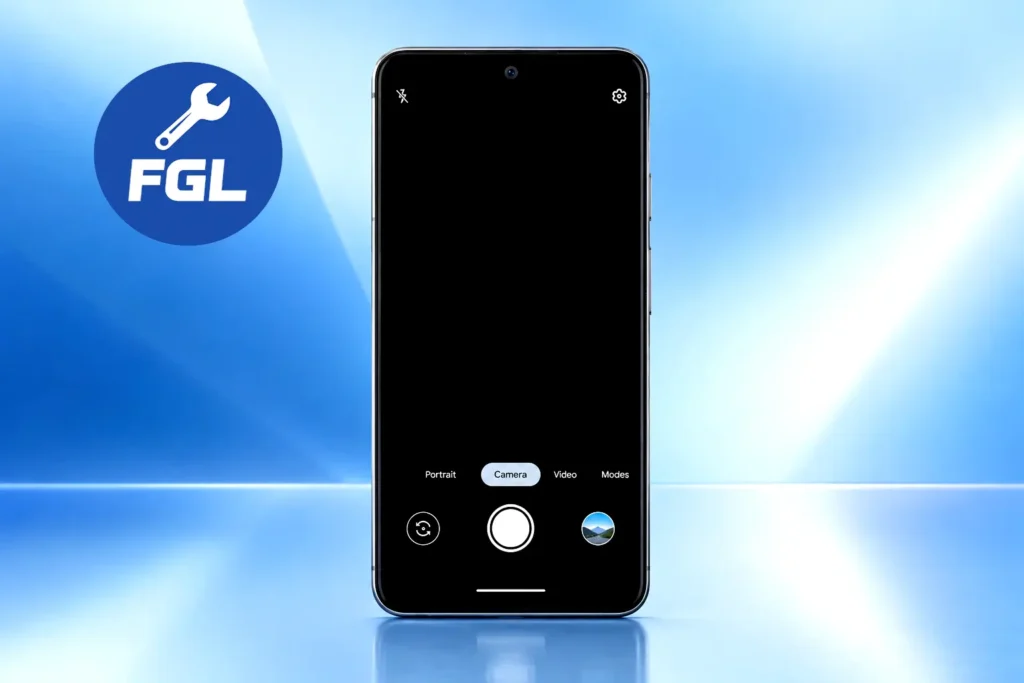
You tap the camera icon on your Pixel and all you get is a black rectangle. Or the viewfinder opens, shows a frame or two, and then freezes while the shutter button does nothing. It always seems to happen at the worst moment, when a pet, a sunset, or a document you need to scan is right in front of you.
This guide walks through the fixes in a sensible order, from the quickest to the most thorough. Some steps are real fixes and some are only tests that help you find the cause, and each one is labeled so you always know which is which.
Quick Fix
Force stop the Camera app, restart your Pixel, and open the camera again. If that does not work, clear the Camera cache and install any pending update. Many one-off black screens end there, and the steps below are for the ones that keep coming back.
Why the Pixel Camera App Freezes or Goes Black
A black or frozen viewfinder means the Camera app opened, but the live feed from the camera never started or stopped partway through. Several ordinary things can cause that:
- A camera service that got stuck in the background after heavy use.
- Camera access switched off in the system privacy settings, or a permission that was changed.
- Another app holding the camera, such as a video call app or a scanner.
- Cached files in the Camera app that no longer match the app’s current version.
Real hardware faults can look identical, which is why a later section explains how to tell the two apart. If your whole screen freezes or ignores taps, not just the camera, that is a different problem, and our Pixel touch lag guide covers it.
If your camera preview looks normal but the saved video shows the subject in the wrong position, see our guide to the Google Pixel video recording bug.
A Known Case: The Android 14 Beta
The problem drew wide attention during the Android 14 beta in 2023, when Pixel 6 and Pixel 7 owners reported the Camera app freezing and crashing, especially after switching to the ultrawide lens. A workaround passed around at the time was to switch to Portrait mode and then back to Photo. That tip was shared by testers and tech sites rather than published by Google, so treat it as a curiosity, not an official fix.
Google later released a software fix for camera crashes more generally. Its January 2024 Pixel update included a Camera app fix for crashes under certain conditions on eligible phones. Google’s notes do not say this was the same problem as the beta bug, so the two should not be treated as linked. The practical takeaway is the same either way: check for software updates before assuming the camera is broken.
5 Fixes for a Frozen or Black Pixel Camera
Work through these in order. None of these should affect your photos, but back up first if you try Clear storage.
1. Force Stop the Camera and Restart (Temporary Workaround)
Open Settings, tap Apps, then See all apps, choose Camera, and tap Force stop. Then restart the phone. On Pixel 6 and later, hold the Power and Volume up buttons for a few seconds to reach the restart option. On Pixel 5a and earlier, Google says to hold the Power button for about 30 seconds until the phone restarts.
This clears a stuck camera service. If the black screen returns within a day, the cause is deeper than a single glitch, so move on instead of repeating this step.
2. Clear the Camera Cache and Update the App (Likely Fix)
Press and hold the Camera icon, tap App info, then Storage & cache, and tap Clear cache. Then open Google Play and install any available Pixel Camera update. Google’s Pixel Camera Help lists these two actions among its first steps for a misbehaving Camera app.
Leave Clear storage for later. Google says it permanently deletes all of an app’s data, so the Camera app goes back to its defaults, including settings such as your default mode and grid lines. Back up anything important first, and try Clear cache before it, since that only removes temporary data.
3. Check Camera Access, Permissions, and Competing Apps (Diagnostic and Fix)
A camera cannot start if Android blocks it. Open Settings, then Security & privacy, then Privacy, then Privacy controls, and confirm that Camera access is switched on (labels can vary slightly between Android versions). Then go to Settings, Apps, Camera, Permissions, and make sure Camera and Microphone are both allowed, since video recording needs both.
Next, close anything else that might be using the camera, such as video calls, scanners, and social apps. If the camera works once they are closed, you have found the conflict.
If every setting looks correct and the screen is still black, try resetting app preferences. Go to Settings, System, Reset options, and tap Reset app preferences. This restores app restrictions, default actions, and settings to their defaults. Google says you will not lose any app data when you do this.
4. Run Safe Mode (Diagnostic Test)
Safe mode helps you test whether a downloaded app is behind the problem, since apps you download can cause freezing and crashing. Google’s Safe Mode guide covers every Pixel model. On Pixel 6 and later, hold the Power and Volume up buttons for a few seconds, touch and hold Power off, and tap OK. “Safe mode” then appears at the bottom of the screen. Older models use a different button method listed on the same page.
Open the camera. If it works, one of your installed apps is likely interfering, so remove recently installed apps one at a time and restart normally after each. If it is still black, a downloaded app is less likely to be the cause. Restart the phone to leave safe mode.
5. Install the Latest Android Update (Most Reliable Long-Term Fix)
Open Settings, then System, then Software updates, and check for a system update. Always keep your phone updated to the latest build available for your model. Google provides up to 5 years of security updates for Pixel 6 series devices (released in October 2021). Check Google’s Pixel update page for your model’s exact update support status. A phone running an outdated Android version misses critical stability fixes that later updates include.
Pixel models that can no longer get major OS updates depend on Camera app updates from Google Play and the steps above. For them, keeping some free storage and closing heavy apps before shooting helps keep performance smooth.
How to Tell If It Is Hardware
Software problems tend to come and go. Hardware problems tend to stay. These checks separate the two in a few minutes:
- Open a different camera-using app, such as a messaging or video call app, and start the rear camera. Google’s help page says that if other apps crash when they use the camera, a hardware issue is likely.
- Switch between the front and rear cameras. If only the rear camera is black while the front works everywhere, a fault in the rear camera module is more likely than a general software bug.
- Repeat the test in safe mode. A camera that stays black even there is unlikely to be blocked by something you installed.
- Look for physical signs: a cracked lens cover, a recent drop or water exposure, or colored lines and a dark patch on the preview.
If these point to hardware, stop changing settings and contact Google Pixel support or an authorized repair service. If the phone has been damaged or repaired outside official channels, warranty coverage can be affected, so check your status with Google before paying for a repair.
What Not to Do First
A factory reset is a last resort, and only after a full backup. Third-party “camera fixer” apps and unofficial camera downloads from random websites can add new problems, so stay with Google Play. Downgrading Android by yourself usually means flashing the phone and can erase everything on it.
Frequently Asked Questions
Why does my Pixel camera work after a restart and then fail again later?
That pattern points to a software service getting stuck rather than a damaged camera. A restart resets the service temporarily, while clearing the cache and installing updates deals with what makes it stick.
Will clearing the Camera app’s storage delete my photos?
It should not, since photos and videos are normally saved to your gallery and backed up to Google Photos if backup is on, rather than kept in the Camera app’s own data. However, Google says Clear storage permanently deletes all app data, so back up anything important first. Clearing the cache is the safer option and only removes temporary data.
Can my case or a dirty lens cause a black screen?
A case that covers the lens makes photos dark, but it does not usually freeze or blank the live preview. A smudged lens gives hazy pictures, not a frozen viewfinder. Wiping the lens is harmless, just do not expect it to solve a freeze.
Could heat be the problem?
Possibly. Google’s help page notes that high temperature can slow the camera’s response. If your phone feels hot after a video call, charging, or time in the sun, let it cool in a shaded spot and try the camera again. If the black screen disappears, you have your answer.

- Google Pixel Battery Drain and Overheating: Causes and Fixes - October 25, 2026
- Google Pixel Video Bug: Subject Missing in Saved Recordings - October 25, 2026
- iPhone 18 Pro Earpiece and Speaker Crackling or Popping: Is It Fixable? - October 25, 2026