
Updated: September 19, 2026
If you have recently updated your Samsung Galaxy phone and now it feels hotter than before, your battery is draining faster, and even simple tasks like opening apps or checking emails are making your phone warm, don’t worry — this can be surprising, but it does not mean your phone’s hardware is damaged.
After a software update, temporary background activity can cause a Samsung phone to run warmer than usual. However, persistent or excessive heat can have other causes and should not automatically be treated as normal.
In this guide, we will explain why this happens and share simple, effective solutions to fix Samsung phone overheating after a new update.
First, note that after a major system update, your Samsung phone performs several background processes. The Android operating system recompiles app code, rebuilds caches, and re-indexes files.
In most US Samsung models (which use Snapdragon processors), Some background activity can continue for a while after an update, but the duration varies by device, software version, apps, and usage.
Important Note
The steps and examples in this guide can vary by Samsung model, carrier, One UI version, and device settings.
- The temperature in your room or outside
- How many apps you have installed
- Your battery age and health
- Your carrier’s specific software version
These fixes are safe to try on any US Samsung phone. If you are unsure about any step, call Samsung USA support at 1-800-SAMSUNG.
| Detail | Information |
| Tested on | Samsung Galaxy S24 Ultra (T-Mobile, Snapdragon 8 Gen 3), Samsung Galaxy S23 FE (Verizon, Snapdragon 8 Gen 2), Samsung Galaxy A54 (AT&T) |
| One UI versions | 6.0, 6.1, 6.1.1 |
| Last updated | June 6, 2026 |
| Reading time | 6 minutes |
Why Your Samsung Phone May Get Hot After an Update
Let’s understand this issue in a very simple way. After a software update, many Samsung phones start heating up, and today we will explain this in an easy way.
When a new One UI version is installed on your phone, it enters a background optimization phase. During this process, the Android system works behind the scenes to recompile installed apps and optimize system performance.
The CPU runs at higher speeds during this period, which temporarily increases heat generation in the device.
On US Samsung models with Snapdragon chips, this process typically finishes within 24 to 48 hours. Based on user reports from XDA Developers and Samsung Community forums, Snapdragon models usually complete faster than international Exynos variants. But your experience may vary.
7 Fixes for Samsung Overheating
Let Your Phone Settle After Update
The Snapdragon chips used in US Samsung phones are very efficient, but they are not magic. It is important to understand that right after a software update, your phone is working hard in the background. During this time, the system puts extra load on the processor as it completes important optimization tasks.
What should you do during this time?
- Give your phone a break from resource-heavy activities
- Avoid gaming for the first 24 hours after update
- Do not record 4K videos
- Avoid long GPS navigation sessions
- Keep your phone connected to a stable Wi-Fi network overnight
By doing this, your phone will start feeling cooler over time and may also deliver better performance.
For Verizon, T-Mobile, and AT&T users: Carrier-specific apps may add a little extra time to the optimization process. This is normal and not a defect.
Run Galaxy App Booster (Official Samsung Tool)
Many users often ignore the optimization tools Samsung provides specifically for post-update issues. When older system files conflict with new app data, the CPU can end up working in repeated cycles, which leads to unnecessary heat generation.
- Open the Galaxy Store on your Samsung phone
- Search for and install “Good Guardians”
- Inside Good Guardians, tap on “Galaxy App Booster”
- Run this tool once
This tool helps optimize all apps on your phone by refreshing their code structure. Galaxy App Booster can optimize installed apps, although the effect on temperature can vary by device and software version.
However, results may vary depending on the number of installed apps and your specific phone model.
Wipe System Cache Partition
If the phone continues to run unusually warm after the update, clearing the system cache can be one troubleshooting step to try.
Clearing the cache partition helps remove these temporary files. This process is safe and does not affect your personal data such as photos, contacts, or apps.
Step-by-step guide
- Turn off your Samsung phone completely.
- Connect your phone to a laptop, PC, or original Samsung charger using a USB-C cable (this is required on most US models to access recovery mode).
- Press and hold the Volume Up + Power button together.
- Release both buttons when the Samsung logo appears.
- Use the Volume buttons to navigate to “Wipe Cache Partition”.
- Press the Power button to select it.
- Use the Volume buttons to select ‘Yes’ and press the Power button to confirm.
- Select “Reboot System Now” and press the Power button to restart your device.
Your phone will restart with a refreshed system cache and may run noticeably cooler afterward.
Switch to Light Performance Mode
US Samsung phones typically come with the Performance Profile set to “Standard” by default. This mode focuses more on performance rather than temperature control. After a heavy software update, switching to Light Mode can help reduce system load and keep your device running cooler.
Path:
Settings → Device Care → Performance Profile → Select “Light”
Light Mode limits peak CPU performance to a balanced level. In normal usage such as apps, YouTube, or web browsing, you are unlikely to notice any lag. However, your phone will generally run cooler, especially in warmer climates.
Reduce Background App Activity
Not every app is fully optimized immediately after a new One UI update. Some apps may continue running background processes or encounter temporary compatibility issues, which can keep the CPU active and contribute to extra heat.
Enable automatic app sleeping:
Settings → Device Care → Battery → Background Usage Limits → Turn on “Put Unused Apps to Sleep”
Add Apps Manually
On the same screen, tap Deep sleeping apps → Add, then select apps that you don’t need running constantly in the background, such as shopping, food delivery, or other apps you use only occasionally.
Deep sleeping apps won’t run in the background and will work when you open them. Keep frequently used apps, especially apps that need timely notifications, out of Deep sleeping apps.
Important Note Before Disabling Carrier Apps
Some carrier-installed apps may run in the background and use system resources. Before disabling one, check what it does on your Samsung phone. Certain carrier services may support features such as voicemail, Wi-Fi calling, or mobile hotspot.
If you don’t recognize an app, it’s better to check its purpose before disabling it rather than turning it off just to reduce overheating.
Use Thermal Guardian for Better Heat Control
Another useful tool inside Samsung’s Good Guardians app is Thermal Guardian. It lets you monitor temperature and view information about CPU usage and the thermal threshold on supported Galaxy devices.
Open Good Guardians from the Galaxy Store.
Tap Thermal Guardian.
Review the temperature history graph to see when the phone has been running warmer than usual.
Tap the Thermal Threshold slider.
If your device supports the setting, moving the slider to the left lowers the thermal threshold. This can make the phone respond to heat sooner, although it may also affect performance when the device reaches the lower threshold.
Thermal Guardian is not available on every Galaxy device, and the available options can vary by model and software version.
Remove Thick Cases and Adjust Display Settings
A thick phone case can make it harder for heat to escape, especially while the phone is charging or under heavy use. If your Samsung phone feels unusually warm, try removing the case for a while and let the device cool in a well-ventilated place.
You can also lower the screen brightness and reduce the refresh rate if your model supports it. Both can reduce power use and may help when the phone is running warm.
Display Settings for Quick Relief
If your Samsung phone feels warm, reducing screen brightness can help lower power use.
- Pull down the Quick Settings panel and lower the brightness.
- If you want to control brightness manually, turn off Adaptive brightness.
- Avoid Extra brightness unless you need it in very bright conditions. Samsung notes that Extra brightness can use more battery and is only available on supported models.
You can also check Settings → Display for other display options available on your model. Menu names and available settings can vary by Galaxy model and software version.
Display Settings for Quick Relief
If your Samsung phone feels warm, reducing screen brightness can reduce power use.
- Pull down the Quick Settings panel and lower the brightness.
- If you want to control brightness manually, turn off Adaptive brightness.
- Avoid Extra brightness unless you need it in very bright conditions. Samsung notes that Extra brightness can use more battery and is only available on supported models.
You can also check Settings → Display for other display options available on your model. Menu names and available settings can vary by Galaxy model and software version.
Samsung USA Support and Warranty Information
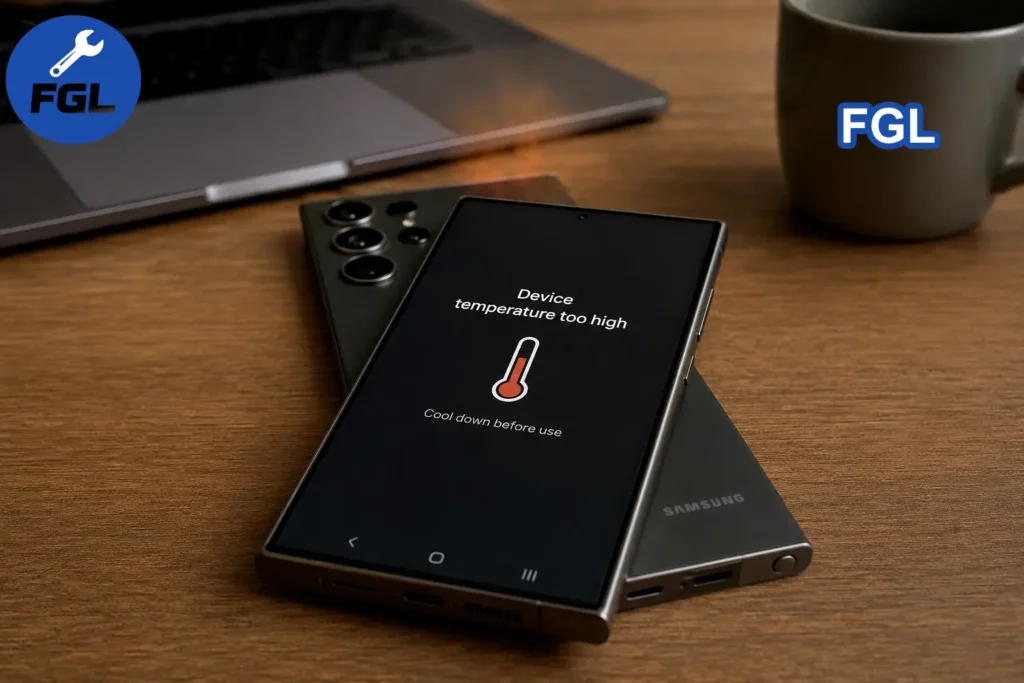
If your Samsung phone continues to overheat during normal use, especially if it becomes too hot to touch or shows an overheating warning, contact Samsung Support for help. Samsung notes that temperature issues can have different causes, including charging, intensive apps, environmental conditions, and software updates.
Warranty coverage depends on the device, purchase details, and the cause of the problem. Samsung’s U.S. limited warranty covers eligible manufacturing defects, so overheating should be evaluated rather than assumed to be a warranty-covered software issue.
For Samsung USA support, you can call 1-800-SAMSUNG (726-7864) or use Samsung’s online support options to request service or chat with a support representative.
When to Contact Samsung Support
Contact Samsung Support or an authorized service center if:
- Your phone remains unusually hot during normal use.
- The device is too hot to touch comfortably even after you stop using it and let it cool.
- You see an overheating or temperature warning.
- The phone repeatedly stops charging, shuts down, or shows other unusual behavior because of high temperature.
- You notice unusual battery drain together with persistent overheating.
If your phone becomes too warm to touch, stop using it and allow it to cool before using it again. The exact warning message and behavior can vary by Galaxy model.
FAQ
Does using my phone while charging make overheating worse?
Using a phone while charging can increase heat, especially during demanding activities such as gaming or video calls. If your Samsung phone is already warm, unplug it and let it cool before continuing to use or charge it. Samsung also recommends charging the device at a suitable temperature and on a hard, flat surface.
Sources

- Google Pixel Battery Drain and Overheating: Causes and Fixes - October 25, 2026
- Google Pixel Video Bug: Subject Missing in Saved Recordings - October 25, 2026
- iPhone 18 Pro Earpiece and Speaker Crackling or Popping: Is It Fixable? - October 25, 2026