
Updated: September 19, 2026
People use WhatsApp for private conversations, family messages, work discussions, photos, documents, and other information they may not want to share publicly. That makes your WhatsApp privacy and account security settings worth checking, especially because scams can target users through verification codes, fake offers, suspicious links, and attempts to take over accounts.
WhatsApp provides several privacy settings that let you control who can see information such as your profile photo, Last Seen, and status, who can add you to groups, and who can contact you through calls. Security features such as two-step verification can add another layer of protection to your account, while end-to-end encrypted backups can protect your chat backup from being accessed by someone who does not have the required encryption key or password.
The right settings depend on how you use WhatsApp and how much information you want to share. The sections below explain the main privacy and security options, what each one does, and when you may want to adjust it.
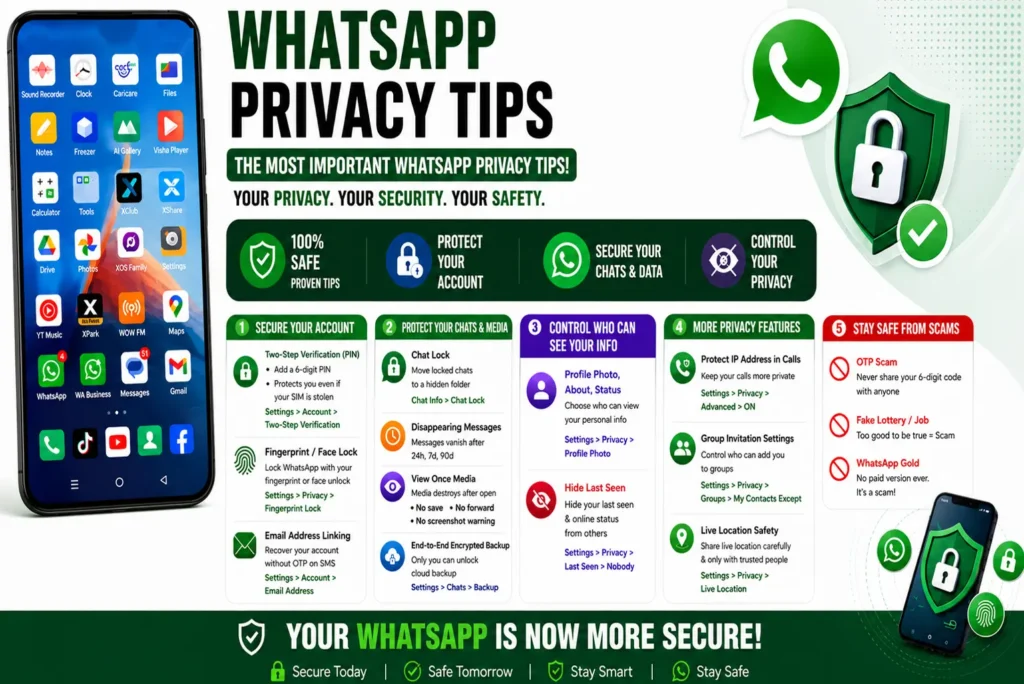
Must-Have WhatsApp Security Settings to Enable Today
WhatsApp offers powerful security features, but they are not all enabled by default. The three settings below are absolutely critical for protecting your account from hackers and unauthorised access.
Must-Have WhatsApp Security Settings to Enable Today
WhatsApp has several security features that can help protect your account from common threats. Some settings require you to enable or configure them yourself, so it is worth checking the security options available on your account.
The three settings below can strengthen your WhatsApp account security and reduce the risk of unauthorised access.
Step-by-Step Guide:
- Open WhatsApp and go to Settings → Account → Two-Step Verification.
- Tap Enable.
- Create a 6-digit PIN. Avoid easy-to-guess numbers such as 123456 or your birth year.
- Add an email address for recovery in case you forget your PIN.
Why this matters: Two-step verification adds an extra layer of security to your WhatsApp account. If someone tries to register your phone number on another device, they may also need the two-step verification PIN you created. This can make it harder for someone to take over your account, including in situations involving SIM-swap or other account takeover attempts.
Important: Use a recovery email account that is protected with a strong, unique password and two-factor authentication. If someone gains access to your recovery email, they may also be able to interfere with the recovery process for your WhatsApp account.
Biometric Lock (Fingerprint / Face ID)
If someone else has access to your unlocked phone, they may also be able to open WhatsApp and view your chats. WhatsApp’s biometric lock adds another layer of protection by requiring your fingerprint or face to unlock the app.
Setup Instructions:
Settings → Privacy → Fingerprint Lock on Android, or Settings → Privacy → App Lock on supported iPhones.
- Turn the biometric lock feature ON.
- Choose when the lock should activate. Immediately provides the shortest period before WhatsApp requires biometric authentication again.
Once enabled, WhatsApp can require your fingerprint or face scan before the app opens, even when your phone itself is already unlocked. This can help prevent someone with temporary access to your phone from opening your private WhatsApp chats.
Email Address Linking
Adding an email address to WhatsApp can provide an additional way to recover your account if you forget your two-step verification PIN or need to verify your account.
Account Recovery
If you forget your two-step verification PIN, the email address linked to your WhatsApp account can be used as part of the recovery process.
Use an email account that you actively use and protect it with a strong, unique password and two-factor authentication. This helps keep your WhatsApp recovery options secure.
How to Add or Update Your Email
Go to Settings → Account → Email Address, then add or update your email address.
Use an email account that you actively use and protect it with a strong, unique password and two-factor authentication. This adds an extra layer of security to your WhatsApp account recovery options.
How to Keep Your Personal Chats and Media Private
WhatsApp chats can contain personal photos, documents, financial information, and private conversations. If someone gets temporary access to your unlocked phone, privacy features such as Chat Lock can add another layer of protection to selected conversations.
Chat Lock & Hidden Chats
Chat Lock lets you move a specific conversation out of your main chat list and protect it with your device authentication, such as a fingerprint, Face ID, or passcode. Notifications from locked chats can also hide the message content, so the conversation details are not shown on the lock screen.
Disappearing Messages
Disappearing Messages lets WhatsApp automatically remove new messages from a chat after a selected period. WhatsApp provides different duration options, which you can choose based on how long you want new messages to remain available.
How to Enable
Open the chat → Tap the contact name at the top → Disappearing Messages → Select your preferred duration.
View Once Media
View Once lets you send a photo or video that is designed to disappear from the chat after the recipient opens it. It can be useful when you want to share something temporarily without keeping it in the normal chat history.
To send View Once media, select a photo or video in WhatsApp and tap the View Once icon before sending it.
Keep in mind that View Once is not a guarantee that the content cannot be saved or captured. The recipient may still be able to record the screen or capture the content using another device.
How to Send View Once Media
- Open the WhatsApp chat or group where you want to send the media.
- Tap the camera or attachment option and take a new photo/video or select one from your device.
- Before sending it, tap the View Once (1) icon.
- Tap Send.
Important Limitations
View Once adds limits to what the recipient can do with the media, but it does not prevent every possible way of capturing the content.
- WhatsApp blocks screenshots and screen recordings of View Once media on supported devices.
- The recipient cannot normally forward, copy, save, or share View Once media through WhatsApp.
- The media is not saved to the recipient’s normal Photos or Gallery.
- Someone can still use another phone or camera to record the screen before the media disappears.
- View Once media can only be opened once, so only send it to people you trust.
Bottom line: View Once is useful when you want a photo or video to be available temporarily, but it should not be treated as a guarantee that the content can never be captured or recorded.
End-to-End Encrypted Backups
WhatsApp messages and calls are protected by end-to-end encryption, but your chat backups stored in Google Account or iCloud are handled separately. WhatsApp offers end-to-end encrypted backups to add another layer of protection to these stored backups.
How to Enable Encrypted Backups
Go to Settings → Chats → Chat Backup → End-to-end encrypted backup.
Tap Turn on, then follow the instructions. Depending on your device and the options available on your account, WhatsApp may let you protect the backup with a passkey, password, or 64-digit encryption key.
Choose a recovery method you can keep secure and remember. If you lose the password, encryption key, or passkey required for the backup, you may not be able to access that encrypted backup.
Why It Matters
Encrypted backups give your stored WhatsApp chats and media an additional layer of protection. If you use WhatsApp to store personal conversations, photos, or important documents, it’s worth checking whether this option is enabled.
Also read: WhatsApp Backup Restore Not Working
Managing Who Can See Your Profile and Information
WhatsApp gives you control over who can see your profile photo, About, Last Seen, online status, and Status updates. If you use WhatsApp for both personal and work conversations, check these settings so you can decide what information you want to share with others.
Profile Photo, About, and Status Privacy
Your profile photo may show more personal information than you realize, especially if it includes your home, workplace, family members, or other details in the background. The About section can also reveal information about you that you may not want to share with everyone.
Your Status updates are another area to check. Photos, videos, and updates can sometimes reveal where you are, what you are doing, or who you are with.
You can review these options from Settings → Privacy and choose the audience for each type of information. WhatsApp provides different privacy controls, so you can decide what you want to share and with whom.
How to Change These Settings
Go to Settings → Privacy → Profile Photo.
Choose who can see your profile photo:
- Everyone
- My Contacts
- My Contacts Except…
- Nobody
If you want most of your contacts to see your profile photo but want to exclude a few people, My Contacts Except… is the useful option. For example, you can hide your profile photo from a particular coworker or other contact without hiding it from everyone else.
You can use similar privacy controls for your About information. Status has its own audience settings, so you can choose who can see your Status updates separately.
How to Hide Last Seen
Go to Settings → Privacy → Last Seen and Online.
For Last Seen, you can choose from options such as:
- Everyone
- My Contacts
- My Contacts Except…
- Nobody
You can also control who can see when you’re online. WhatsApp lets you choose whether your online visibility follows your Last Seen setting or is available more broadly.
The Trade-Off
If you stop sharing your own Last Seen and online status, you also won’t be able to see other people’s Last Seen and online information. This works both ways in WhatsApp’s privacy settings.
Read Receipts (Blue Ticks)
The blue ticks show when a message has been read. If you don’t want to share this information with other people, you can turn off read receipts.
How to Disable Read Receipts
Go to Settings → Privacy → Read Receipts and turn the option OFF.
Pros: People won’t receive read receipts from you in individual chats, so they won’t be able to tell from the blue ticks that you’ve read their message.
Cons: You also won’t be able to see read receipts from other people. Group chats are an exception — read receipts are still sent in group chats even when you turn this setting off.
Protection Against Unknown Callers and Scams
Unknown WhatsApp calls can be annoying, especially when you don’t recognize the number or aren’t expecting a call. They can also be used as part of spam or scam attempts, so WhatsApp provides a setting that lets you silence calls from unknown numbers.
Silence Unknown Callers
This feature stops calls from unknown numbers from ringing your phone. The calls are still shown in your Calls list and notifications, so you can check them later if you recognize the number or think the call may be important.
To enable it, go to Settings → Privacy → Calls and turn on Silence Unknown Callers.
Silencing an unknown call does not block the person from contacting you completely. If you receive a suspicious call or message, you can also block or report the account from WhatsApp.
How to Enable
Go to Settings → Privacy → Calls → Silence Unknown Callers and turn it ON.
This stops calls from unknown numbers from ringing your phone. The calls can still appear in your Calls list and notifications, so you can check them later if needed.
Protect IP Address in Calls
WhatsApp also has a setting called Protect IP address in calls. When enabled, your calls are relayed through WhatsApp’s servers instead of connecting directly to the person you’re calling. This prevents the other person from seeing your IP address through the call connection.
To enable it, go to Settings → Privacy → Advanced → Protect IP address in calls and turn it ON.
Small trade-off: Call audio and video quality may decrease slightly because the call is relayed through an extra server. Depending on your connection, you may notice a small difference in call quality. WhatsApp says that calls using this relay remain end-to-end encrypted.
Group Invitation Settings
Being added to unwanted WhatsApp groups can be annoying, especially when the group is promotional, unrelated to you, or simply something you didn’t ask to join. WhatsApp’s group privacy settings let you control who can add you directly to groups.
How to Configure
Go to Settings → Privacy → Groups and choose My Contacts Except….
You can then select specific contacts who you don’t want to be able to add you directly to groups. If someone who can’t add you directly tries to add you, WhatsApp can send you a private invitation instead. You can choose whether to accept the invitation or let it expire.
Staying Safe from Common WhatsApp Scams
WhatsApp scams can target users through fake messages, impersonation, verification-code requests, and other social engineering tactics. Below are some common WhatsApp scams and practical ways to avoid them.
OTP Scam (One-Time Password Fraud)
How it works: You receive a message or call from someone pretending to be a friend, family member, customer care representative, or another trusted person. They ask you to share your WhatsApp verification code or OTP. If you give them the code, they may be able to register your WhatsApp account on another device and attempt to take control of it.
Once an account is compromised, scammers may contact people in the victim’s address book while pretending to be them. They may ask for money, personal information, or additional verification codes.
How to avoid: Never share your WhatsApp verification code or OTP with anyone. WhatsApp will not ask you to share a verification code with another person. If someone contacts you asking for your code, treat the request as a scam and do not provide it.
Fake Lottery / Job Offer Scam
How it works: You may receive a message such as: “Congratulations! You have won ₹5,00,000. Click this link to claim your prize.” Another common example is a fake work-from-home offer promising unusually high earnings and asking you to click a link or provide personal details.
The link may lead to a phishing website designed to steal information such as your login details, payment information, or other personal data. Some links may also lead to malicious downloads or other unsafe websites.
How to avoid: Don’t click suspicious links from unknown senders, especially when a message promises a prize, unusually high earnings, or asks for personal or payment information. Verify the offer through the organization’s official website or another trusted contact method before taking any action.
If an offer seems unusually good or creates pressure to act quickly, treat that as a warning sign and verify it independently.
WhatsApp Gold / Fake Update Scam
How it works: You may receive a message claiming that “WhatsApp Gold” is a premium or exclusive version of WhatsApp available for free. The message may include a download link that takes you to an unofficial website or unsafe download. Such downloads can expose your phone to malware or other security risks.
How to avoid: Download WhatsApp and its updates only from the official Google Play Store, Apple App Store, or WhatsApp’s official website. WhatsApp does not offer an official “Gold” version. Treat unexpected messages asking you to download a modified or exclusive version of WhatsApp as suspicious.
The Golden Rule of WhatsApp Safety
If a message promises free money, easy jobs, prizes, or exclusive features and asks you to click a link or provide personal information, don’t act on it immediately. Verify the offer through an official website or another trusted source first.
WhatsApp provides several privacy and security features, including two-step verification, Chat Lock, privacy controls, scam protection, and end-to-end encrypted backups. These features can help reduce your exposure to common account, privacy, and scam-related risks, but no security setting can guarantee complete protection.
Take a few minutes to review your WhatsApp privacy and security settings and enable the features that fit the way you use the app. It’s better to review these settings before you encounter an account takeover attempt, suspicious message, or unwanted access to your chats.
Your WhatsApp security also depends on how you handle verification codes, links, downloads, and requests for personal information. Use the available security settings, but stay cautious when something looks unusual
For more information about WhatsApp’s security features and account protection, see the official WhatsApp Security guide.
Frequently Asked Questions
Can someone read my WhatsApp messages if I have end-to-end encryption enabled?
End-to-end encryption means your personal WhatsApp messages and calls are protected so that only you and the person you’re communicating with can access their content. WhatsApp says it cannot read or listen to end-to-end encrypted messages and calls.
However, encryption does not protect a message from someone who already has access to your unlocked phone or to a device where your WhatsApp account is linked. Your chat backups are also protected separately, which is why enabling end-to-end encrypted backups can add another layer of protection.
What should I do if my WhatsApp account gets hacked?
- If you still have access to your account, open Settings → Linked Devices and remove any device you don’t recognize.
- If someone has registered your phone number on another device, re-register your number on your own phone using the verification code. WhatsApp says this logs the other device out.
- Turn on two-step verification after recovering your account.
- If you suspect a SIM-related problem, contact your mobile carrier to check whether your number has been transferred or your SIM has been replaced.
- Tell your contacts that your account may have been compromised so they can ignore suspicious messages or money requests coming from your number.
Can police or government agencies read my WhatsApp messages?
End-to-end encryption protects the content of personal WhatsApp messages and calls from being read by WhatsApp or intercepted by someone outside the chat.
However, this does not mean that every copy of a message is inaccessible. Someone with access to your unlocked phone, a linked device, or a recipient’s saved copy may be able to see the conversation. WhatsApp also says it responds to law-enforcement requests according to applicable law and its policies.

- Google Pixel Battery Drain and Overheating: Causes and Fixes - October 25, 2026
- Google Pixel Video Bug: Subject Missing in Saved Recordings - October 25, 2026
- iPhone 18 Pro Earpiece and Speaker Crackling or Popping: Is It Fixable? - October 25, 2026