
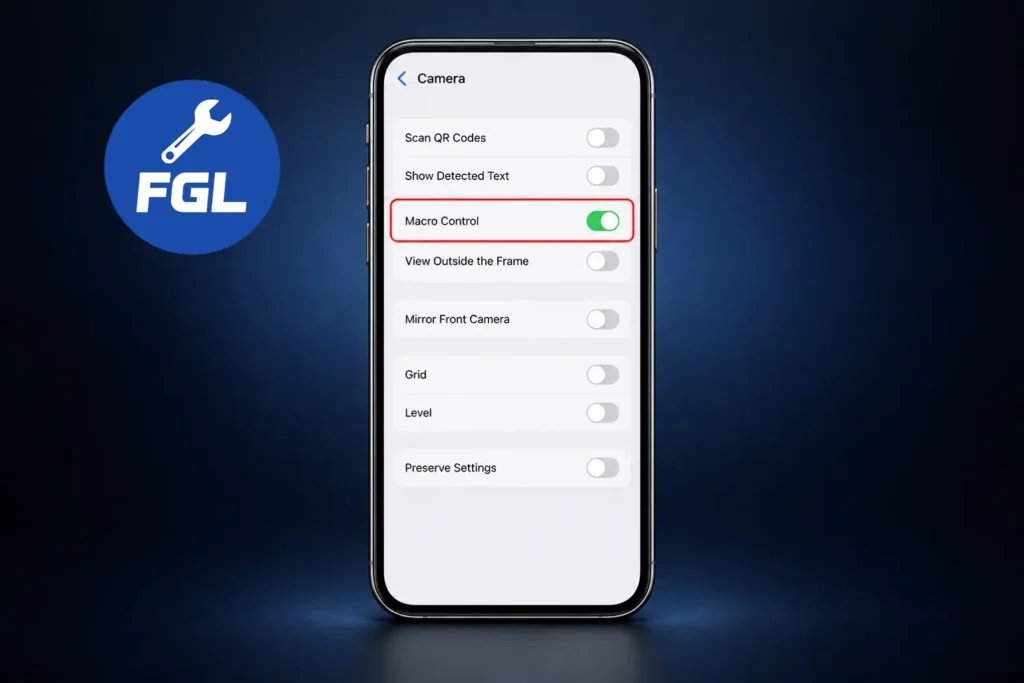
If close-up photos look blurry or the image shifts slightly as you move closer, the camera may be switching between lenses. Turning on Macro Control in Settings > Camera lets you control this switch and can help keep close-up shots in focus.
Quick Fix
- Open Settings > Camera and turn on Macro Control.
- Open the Camera app and move close to your subject.
- When the Auto Macro button appears, tap it to turn off automatic macro switching for that shot.
- Tap your subject on the screen to refocus, then take the photo.
- If the picture is still blurry, move the phone back a little. You can also tap .5x to switch to the Ultra Wide camera manually.
If the Auto Macro button doesn’t appear, the iPhone model may not support this feature. The next steps explain what to do in that case.
Why the Camera Gets Blurry Up Close
Phone camera lenses are designed to focus clearly from a certain distance. If you get too close to the subject, the lens may not be able to focus properly, so the photo can look blurry.
On supported iPhones, the Camera app switches to the Ultra Wide camera for close-up shots. This helps focus on nearby subjects, but the switch between the two lenses can make the image shift slightly.
Keep Your Macro Control Choice
If you want the Camera app to remember your Macro Control choice, go to Settings > Camera > Preserve Settings and turn on Macro Control. Apple explains how this setting works in its macro photography guide.
When the Camera Shifts While Recording Video
If the frame shifts or jumps while you’re recording and moving closer to a subject, the camera may be switching lenses during recording. To prevent this, go to Settings > Camera > Record Video and turn on Lock Camera. Apple says this prevents the camera from switching between cameras while recording, so the video stays on the selected camera.
If Your iPhone Doesn’t Support Macro Mode
Macro Control lets you control automatic macro switching. If your iPhone doesn’t have this feature, you’ll need to manage the shooting distance yourself. Moving the phone back until the subject comes into focus can give you a sharper result.
For a closer shot, you can also use the 2x option if your iPhone has it, then crop the photo if needed. This lets you frame a small subject without moving the phone too close.
When Other Apps Can’t Focus Up Close
If the Camera app works normally up close but another app, such as a barcode scanner, shopping app, or banking app, stays blurry, that app may handle the camera differently.
Try moving the phone a little farther away from the subject until the picture becomes clear. Different apps can focus at different distances, so the same close-up distance may not work in every app.
The tips above can help fix blurry close-up photos caused by macro switching. If you set up the camera according to the recommended settings and follow the focusing steps, the problem should improve in most cases. However, if the camera lens is scratched, cracked, or has internal damage, these settings may not be enough. In that situation, have the iPhone checked by Apple or an authorized repair provider to identify the hardware problem and repair it if necessary.
Frequently Asked Questions
Does turning off automatic macro switching disable macro photos completely?
No. It only stops the Camera app from switching to the Ultra Wide camera automatically. You can still tap .5x to switch to the Ultra Wide camera manually when you need a close-up shot.
Can I use macro mode for Live Photos or other video modes?
Yes. On supported iPhone models, macro photography also works with Live Photos, slow-motion, and time-lapse videos. Macro switching uses the Ultra Wide camera for these close-up shots.
Why does tapping the screen help when a close-up photo is blurry?
Tapping the subject tells the Camera app where you want it to focus. If the subject is still too close for the selected camera, move the iPhone back slightly and tap the subject again.

- iPhone Camera Won’t Focus Up Close? How to Fix Blurry Lens Switching - September 28, 2026
- How to Fix Google Maps Location Sharing Not Updating or Working - September 18, 2026
- Vodafone WiFi Calling Not Working? 7 Proven Fixes for UK Users - September 16, 2026
